How to Connect a Domain to Squarespace
If you already have a website built at Squarespace, you can use our Quick Setup tool to link it to your domain. There are two steps to connecting a domain to Squarespace, both of which we’ve outlined below. Let's get started!
Connecting your domain on Squarespace
Before doing anything on Porkbun, you'll need to connect the domain on Squarespace so your website points at the domain properly. Follow these steps first:
1
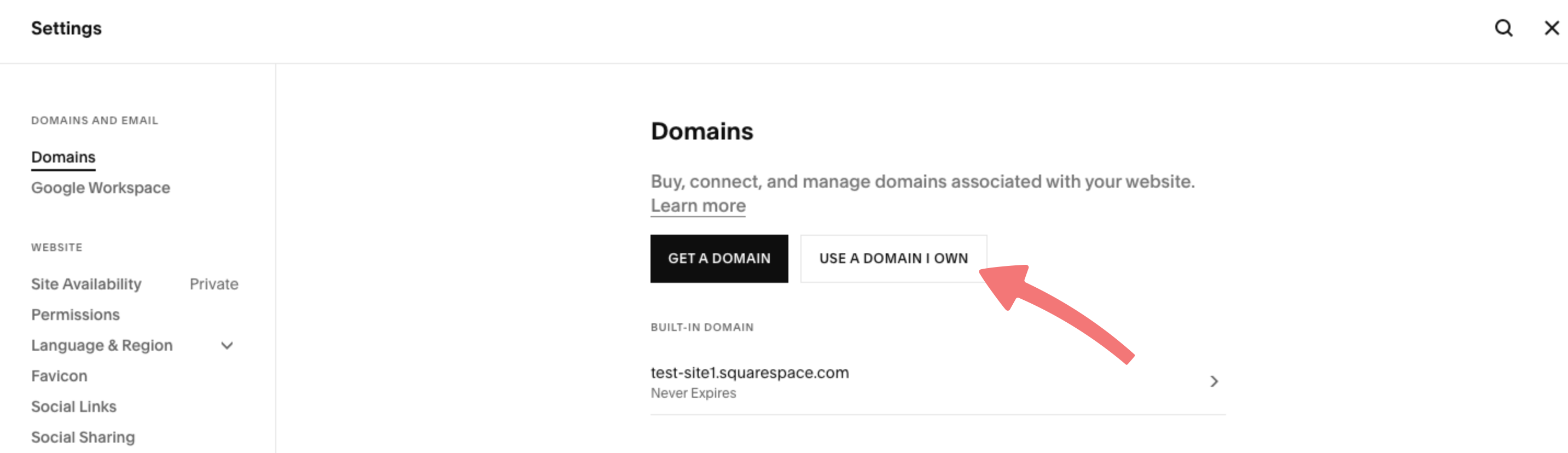
Log in to your Squarespace account. Once you've logged in, navigate to the Domains panel in your account's settings. This page may also be titled "Domains & Email".
2
Click on the button labeled "Use a domain I own" since we'll be connecting your existing domain from Porkbun.
3
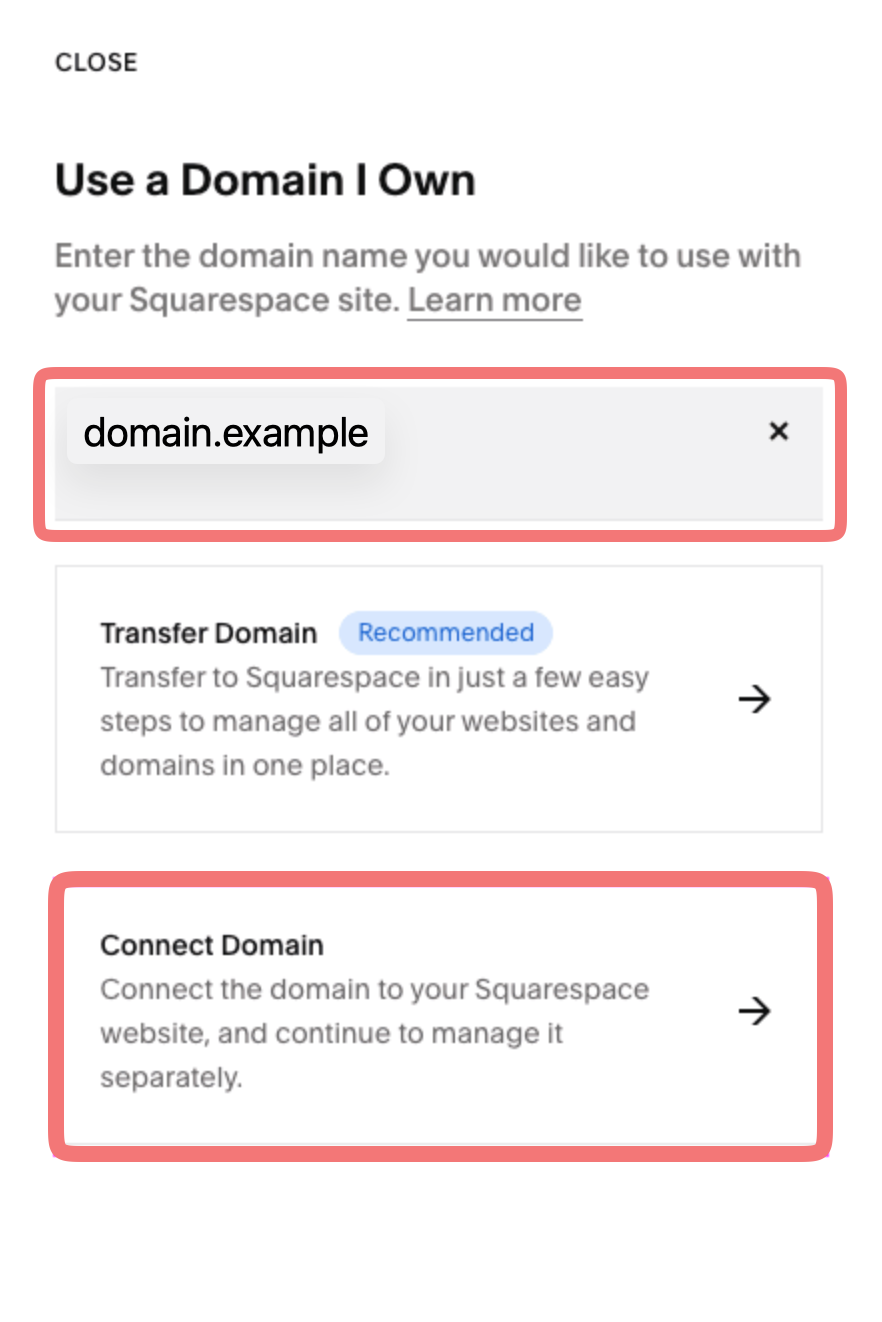
On the window that opens up, enter your domain name, then submit it. After a moment, Squarespace should give you the option to transfer your domain or connect it. Click on "Connect Domain" to proceed.
4
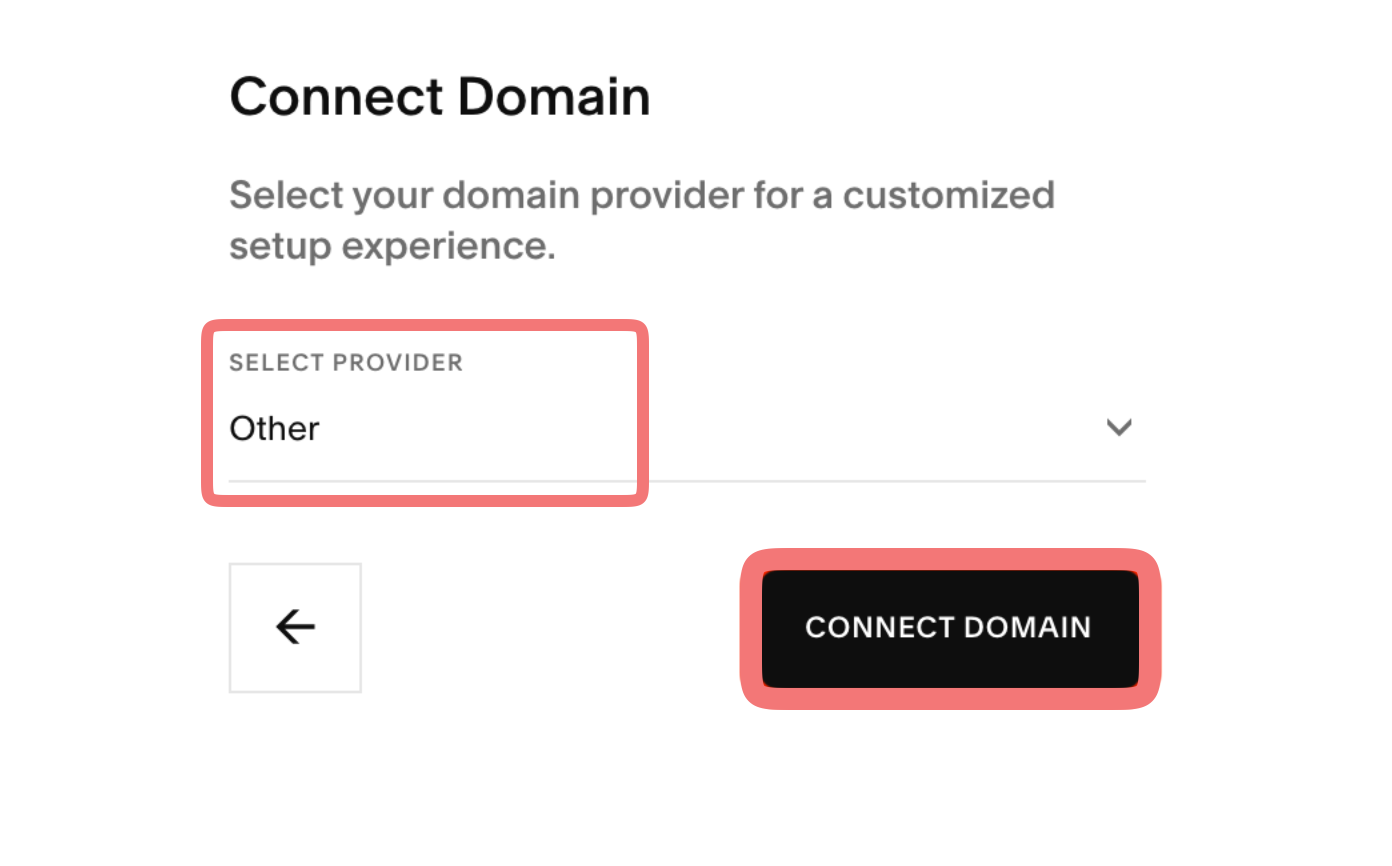
On the next page, Squarespace may ask you to confirm who your domain provider is. If you don't see Porkbun on the list, just choose "Other" from the menu and then click "Connect Domain".
Note
If you see an option that says "No, use DNS records" on this step, click that button instead. Either way, just make sure you're choosing the option that lets you set up the domain manually using DNS records.
5
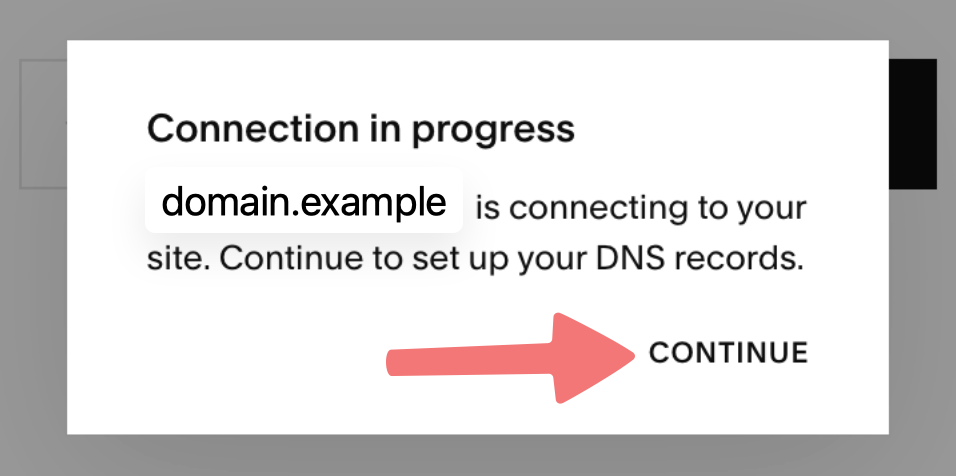
Another window will pop up saying the domain connection is starting. Click on "Continue".
6
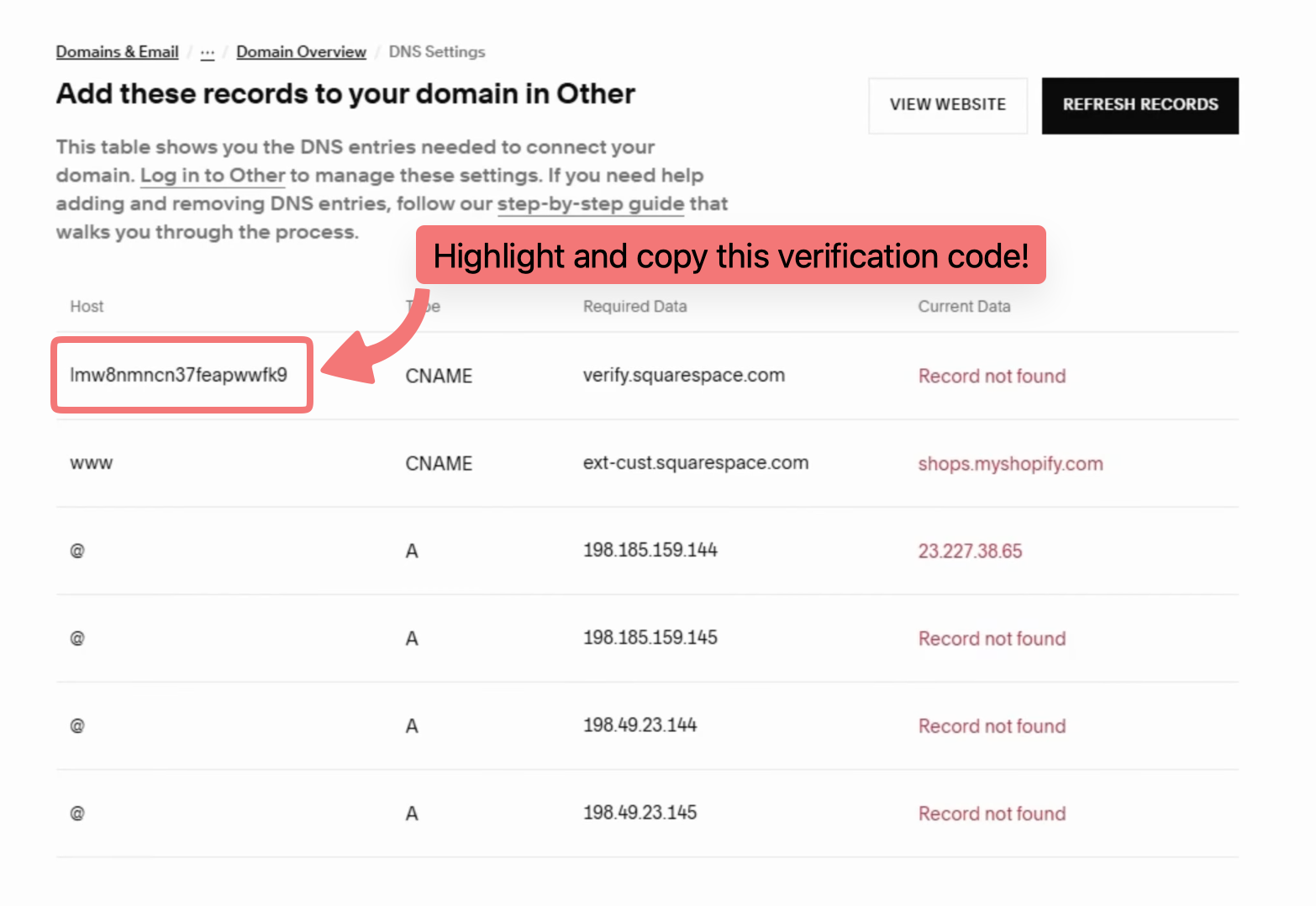
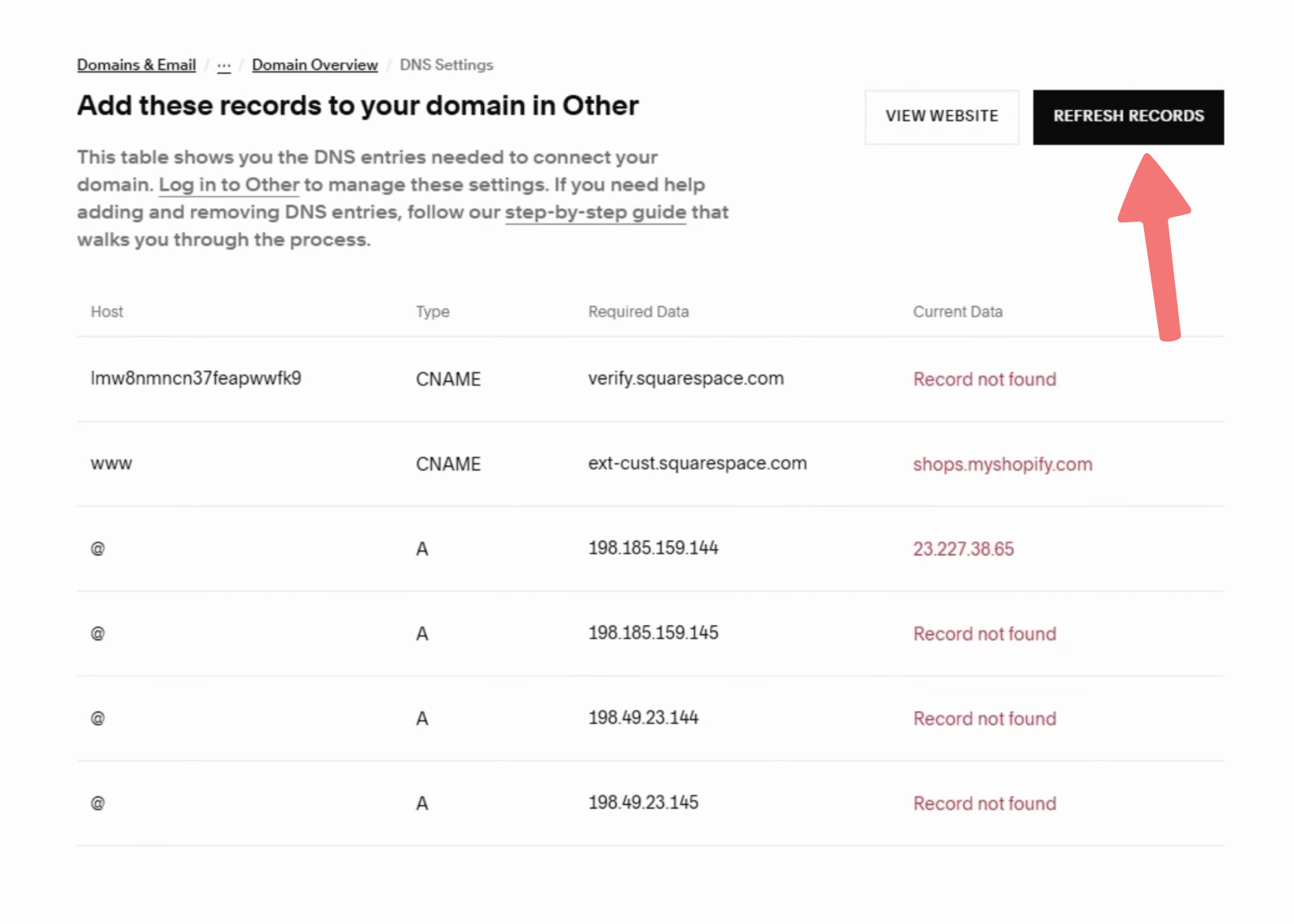
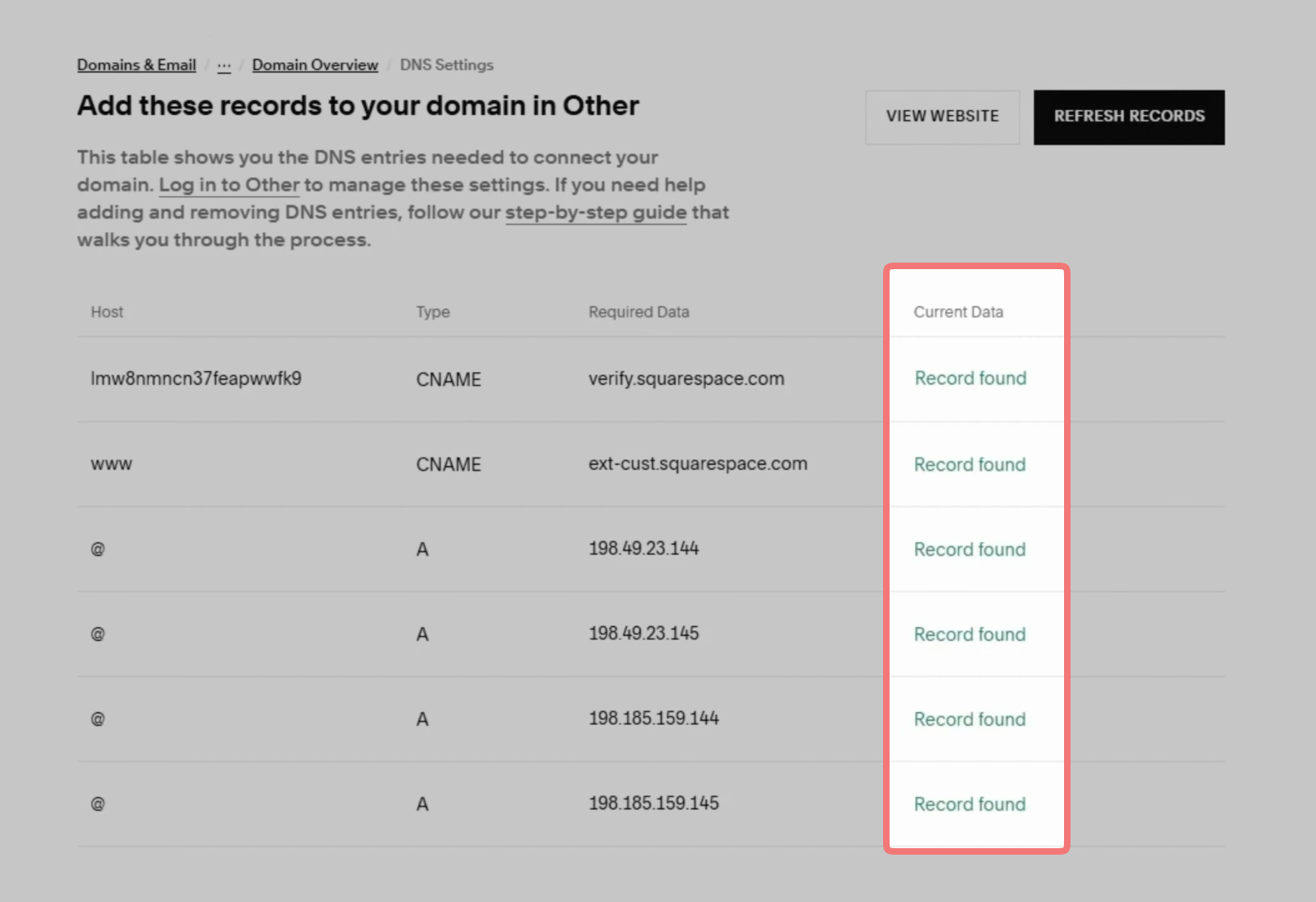
On the next page, Squarespace will display a list of DNS records that need to be added to your domain on Porkbun to connect the two services together.
Porkbun makes this process easy! You'll notice that the first record they show you has a long string of numbers and letters under the "Host" column. All you need to do is highlight and copy this code (CTRL+C or CMD+C) so we can paste it over on Porkbun.
That's half the battle! Now that you have your verification code copied to your clipboard, you'll need to add it to the domain on Porkbun. You can leave the current Squarespace page open, and in a new tab or window, go to porkbun.com so you can finish the process.
Now we'll get the domain configured on Porkbun so that it "points" to the website you've created on Squarespace. Here's how!
1
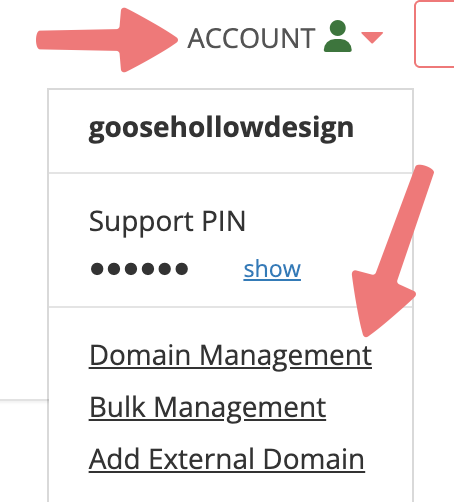
Log in to your Porkbun account and you should arrive at the Domain Management screen. If you're already logged in, click on ACCOUNT in the top-right corner and select "Domain Management" from the dropdown menu.
2
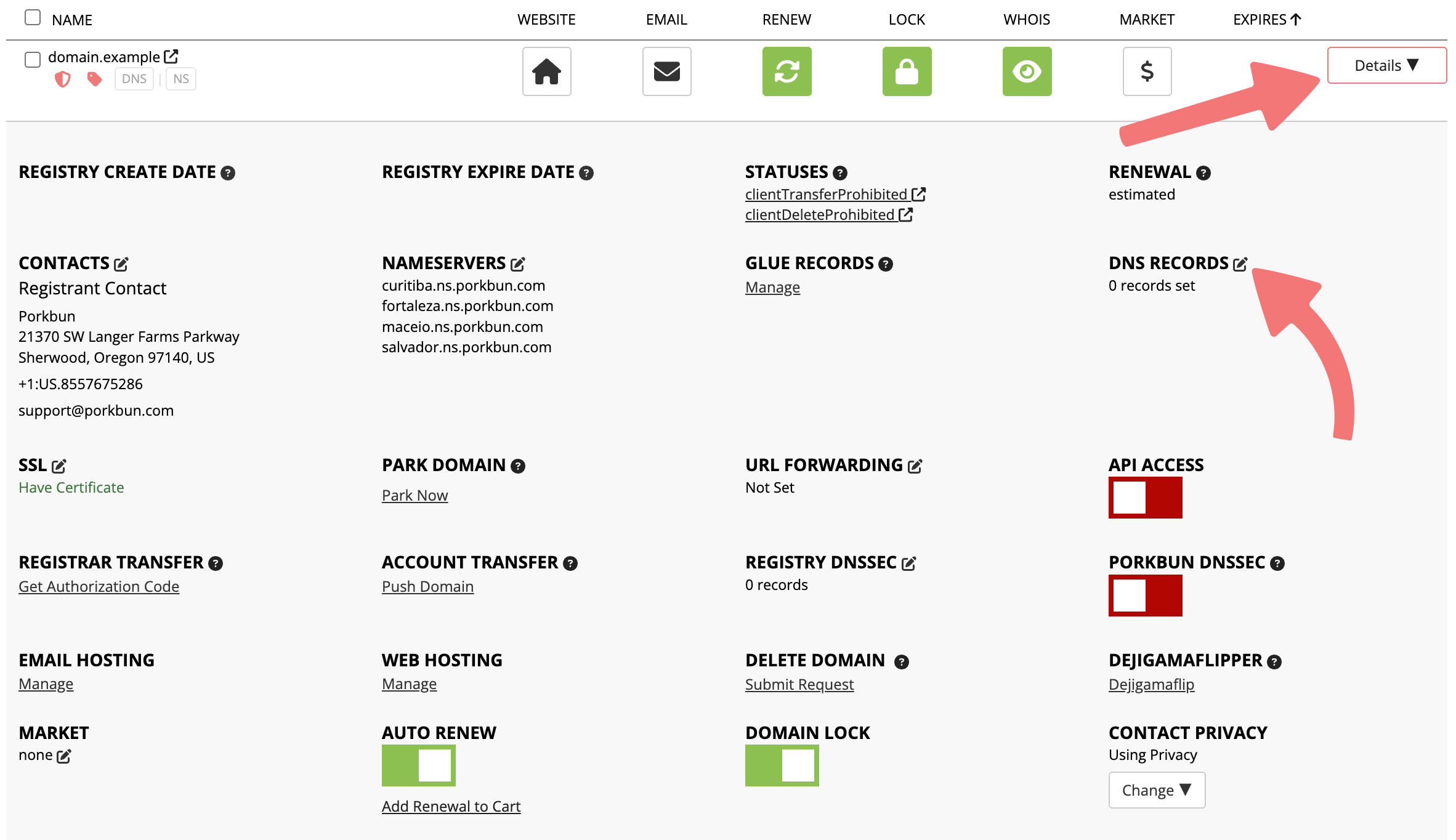
Locate your domain on this page. Click the Details button to the far right of your domain to show more details and options. Click the edit icon next to "DNS Records" in the details area.
3
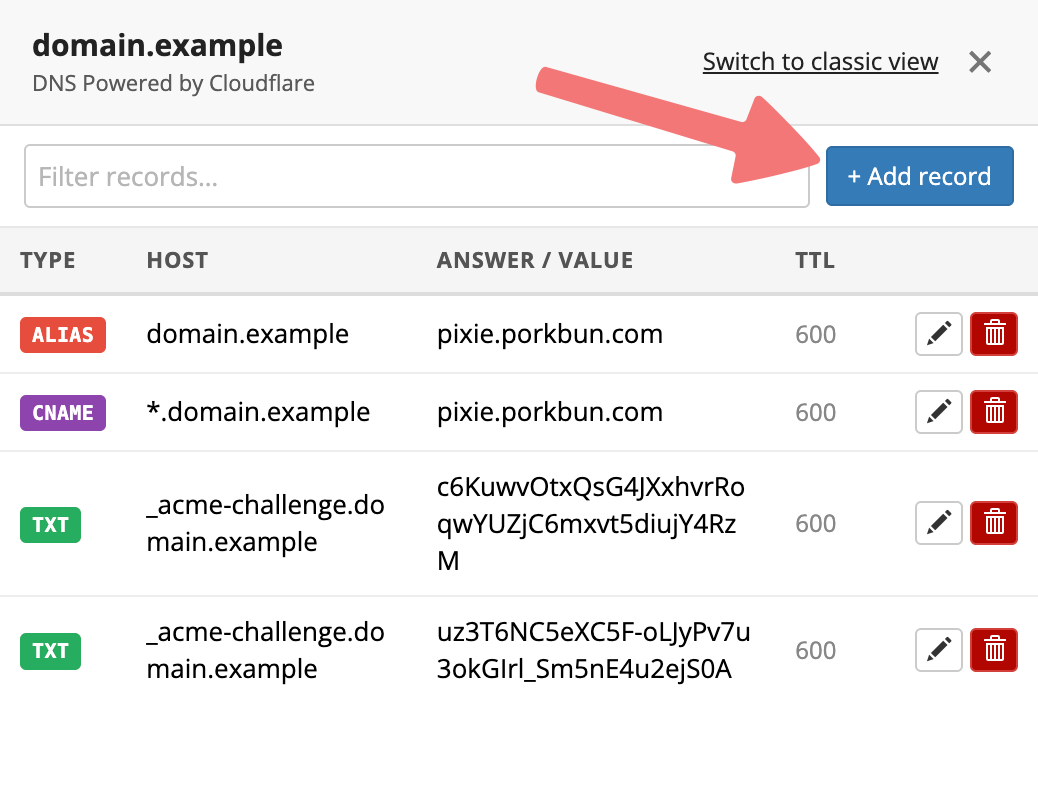
A menu will appear that displays all of the current DNS records for your domain. Click on the "Add record" button in the upper-right corner.
4
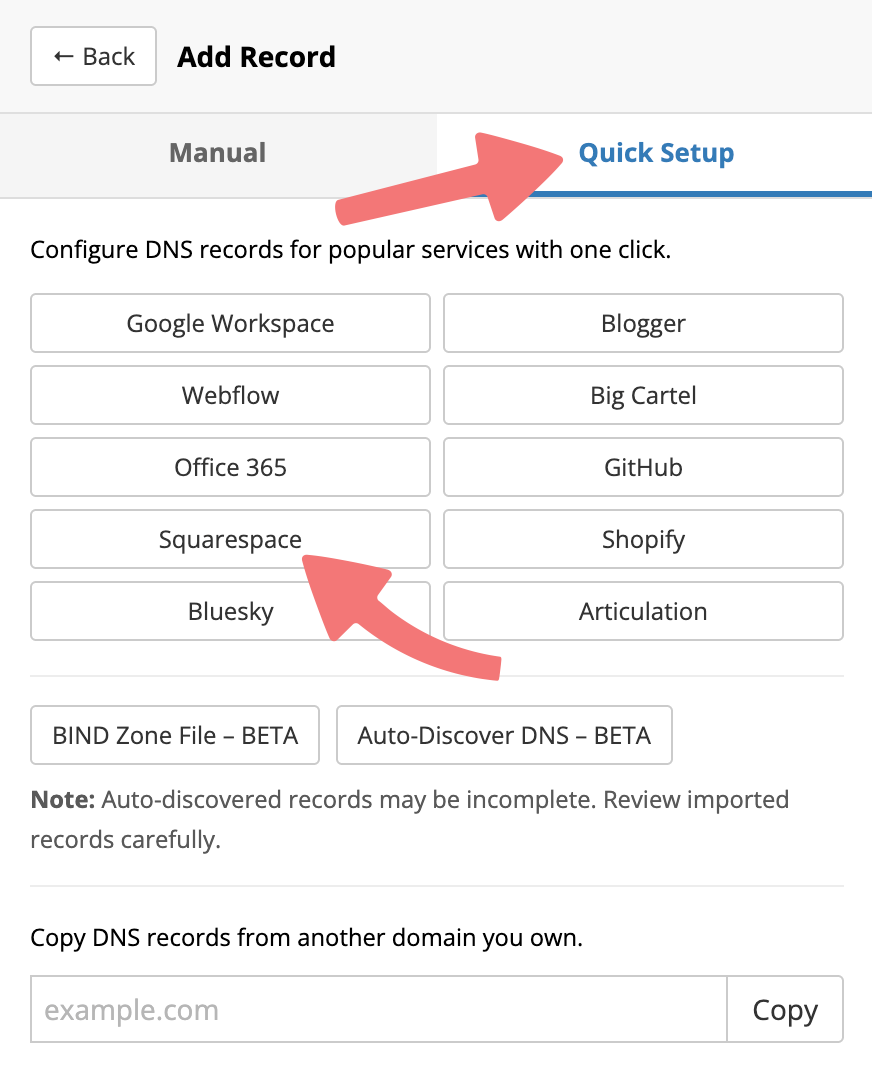
Another menu will appear, allowing you to add new records to your domain. Click on the "Quick Setup" tab at the top of the menu, then click on the "Squarespace" button to configure your domain.
5
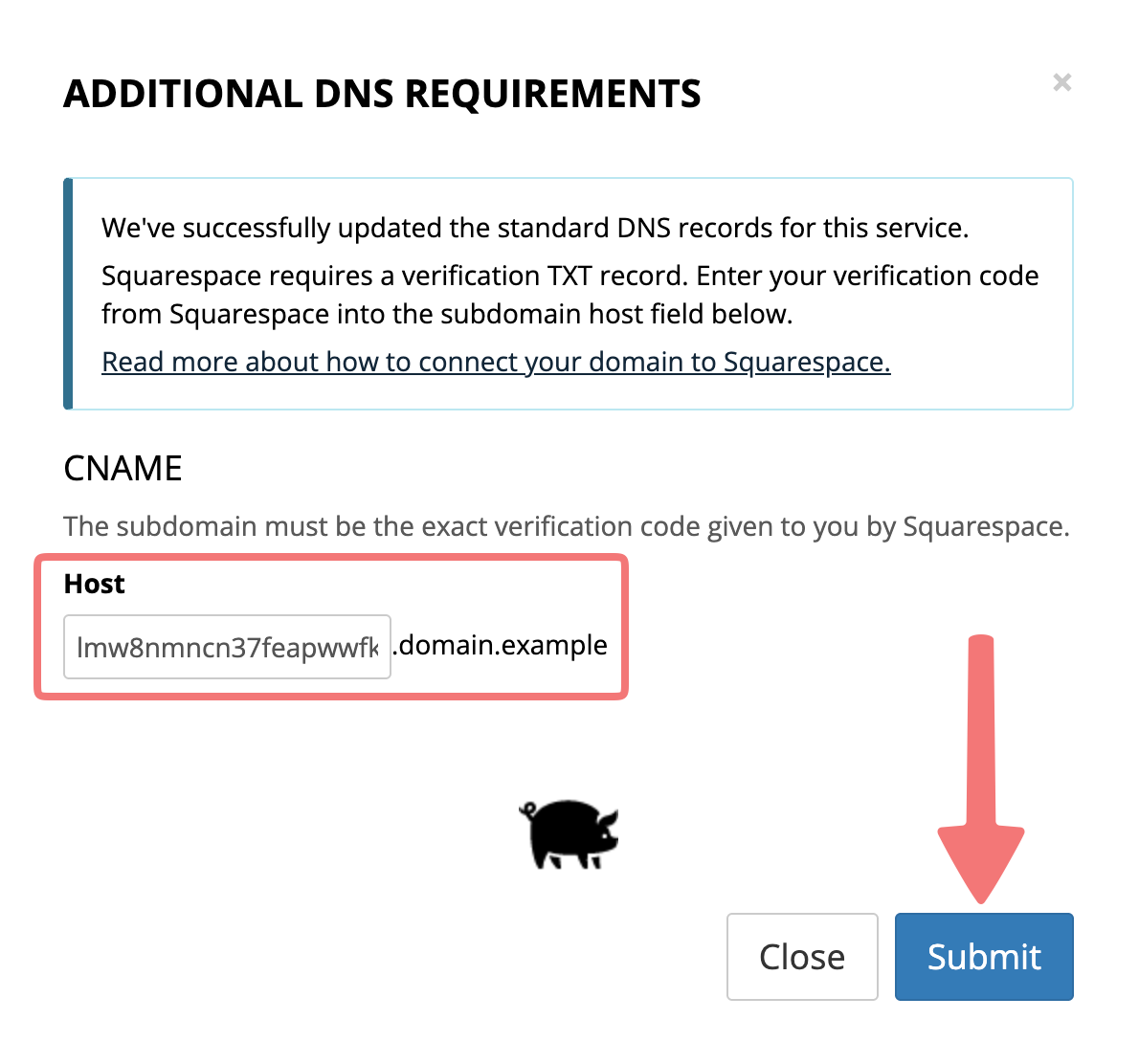
After a moment a new window will pop up letting you know that your domain is successfully configured to point to Squarespace. In the field that shows up under "Host", you need to paste in the verification code you copied from Squarespace earlier.
Make sure you're entering the code exactly how it was given to you on Squarespace. Paste that code in, then click "Submit".
6
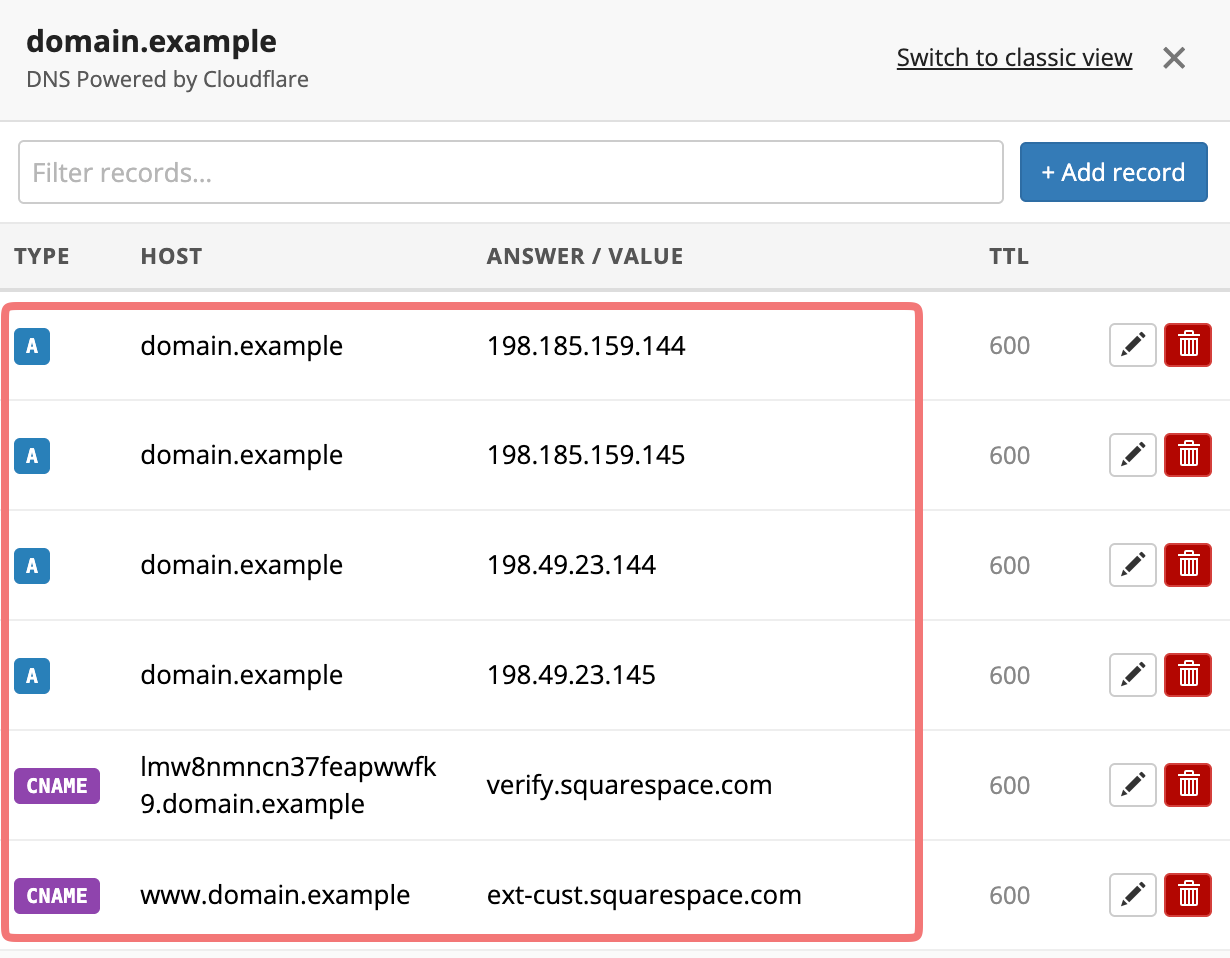
Click "OK" on the window that confirms the DNS records were updated successfully. You'll be taken back to the menu showing the DNS records currently applied to your domain, and you should see that everything matches what Squarespace asked for during setup.
7
You're now finished with configuring the domain on Porkbun. Switch back to your Squarespace account, and on the DNS Settings page, click on "Refresh Records" to get Squarespace to detect the new records you added.
After a moment, Squarespace should detect all of your new records, and the "Current Data" column should show a green "Record found" result for all of the records.
Note
Changing your DNS records can take some time to fully propagate. If Squarespace isn't detecting your new records yet, try again after a few minutes. Also be sure to double check that you've pasted the verification code in exactly as it was given to you on Squarespace.
That's it! You’ve successfully learned how to connect a domain to Squarespace and your domain should begin resolving worldwide to your Squarespace site within the next hour (though it can take up to 48 hours in some cases).
If you need any further assistance connecting your domain to Squarespace, feel free to reach out to our support team.