How to Renew cPanel Hosting
Looking to manually renew your cPanel hosting plan, or to toggle automatic renewal? You're in the right place! Here's how it's done.
1
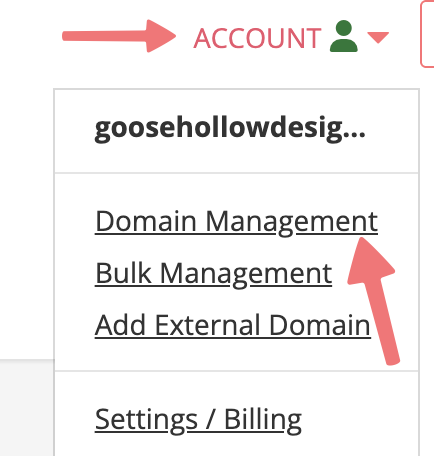
Log in. This should take you to the Domain Management screen. If you're already logged in, click on ACCOUNT in the top right, and select Domain Management.
2
Locate the domain with the hosting plan you're looking to renew. To the right of the domain is a row of icons. Click the cPanel icon that is the first option in that list, under the "WEBSITE" column.

3
You will be directed to the cPanel hosting page for your domain. If you want to toggle automatic renewal on or off, you can do so by scrolling down to the "Auto Renew" section and toggling the switch accordingly.


4
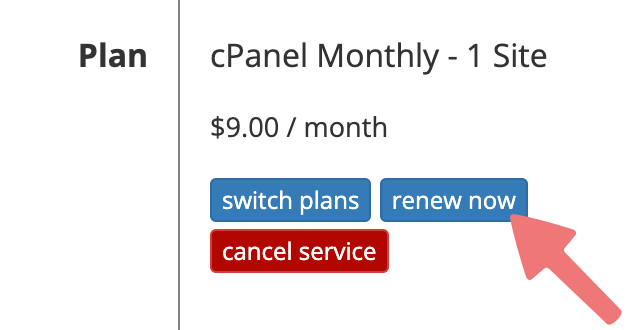
If you want to manually renew your cPanel plan, scroll down to the section labeled "Plan", then select the "renew now" button.
5
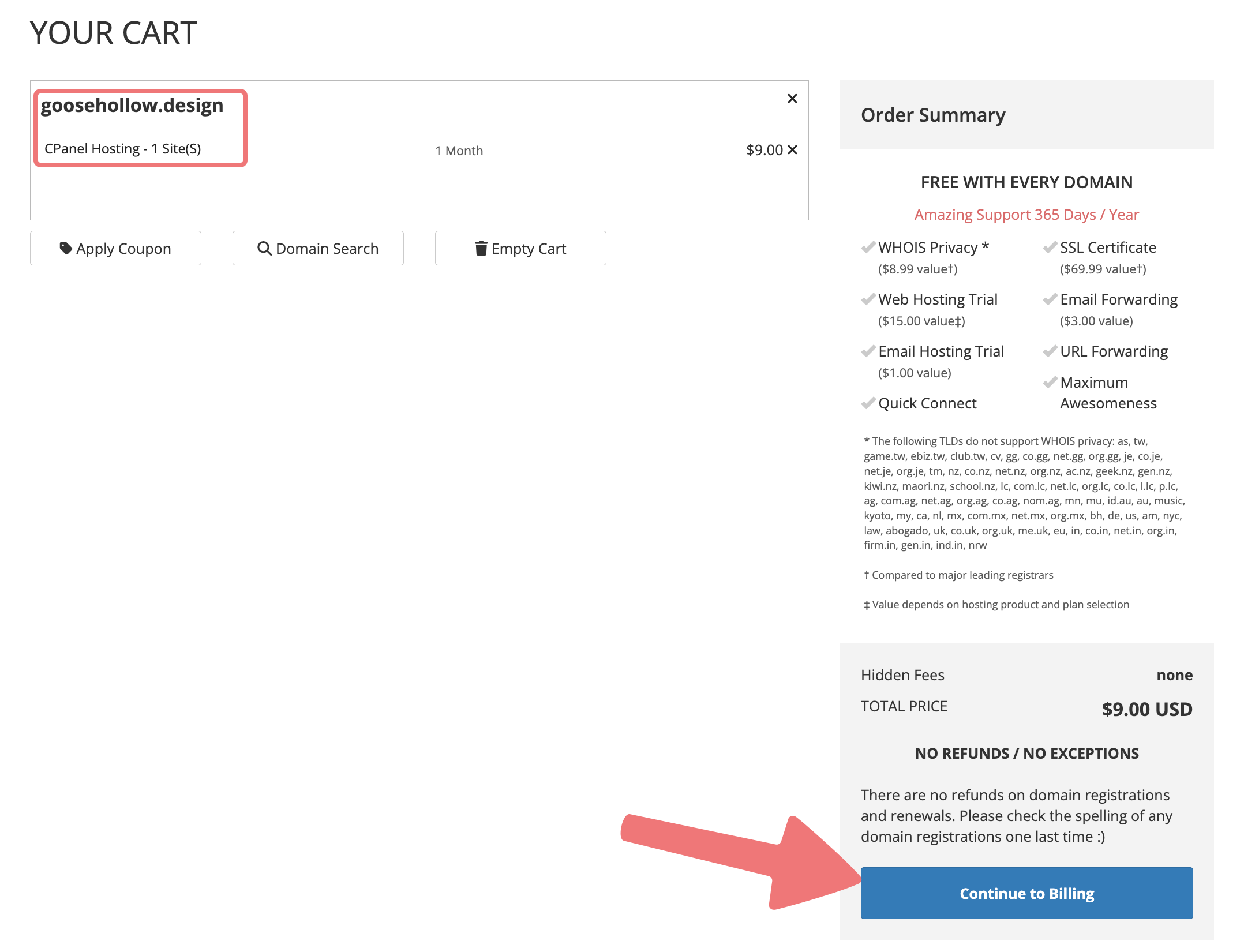
You will be redirected to your cart, where you can select the "Continue to Billing" button to check out and finish renewing the cPanel hosting for your domain.
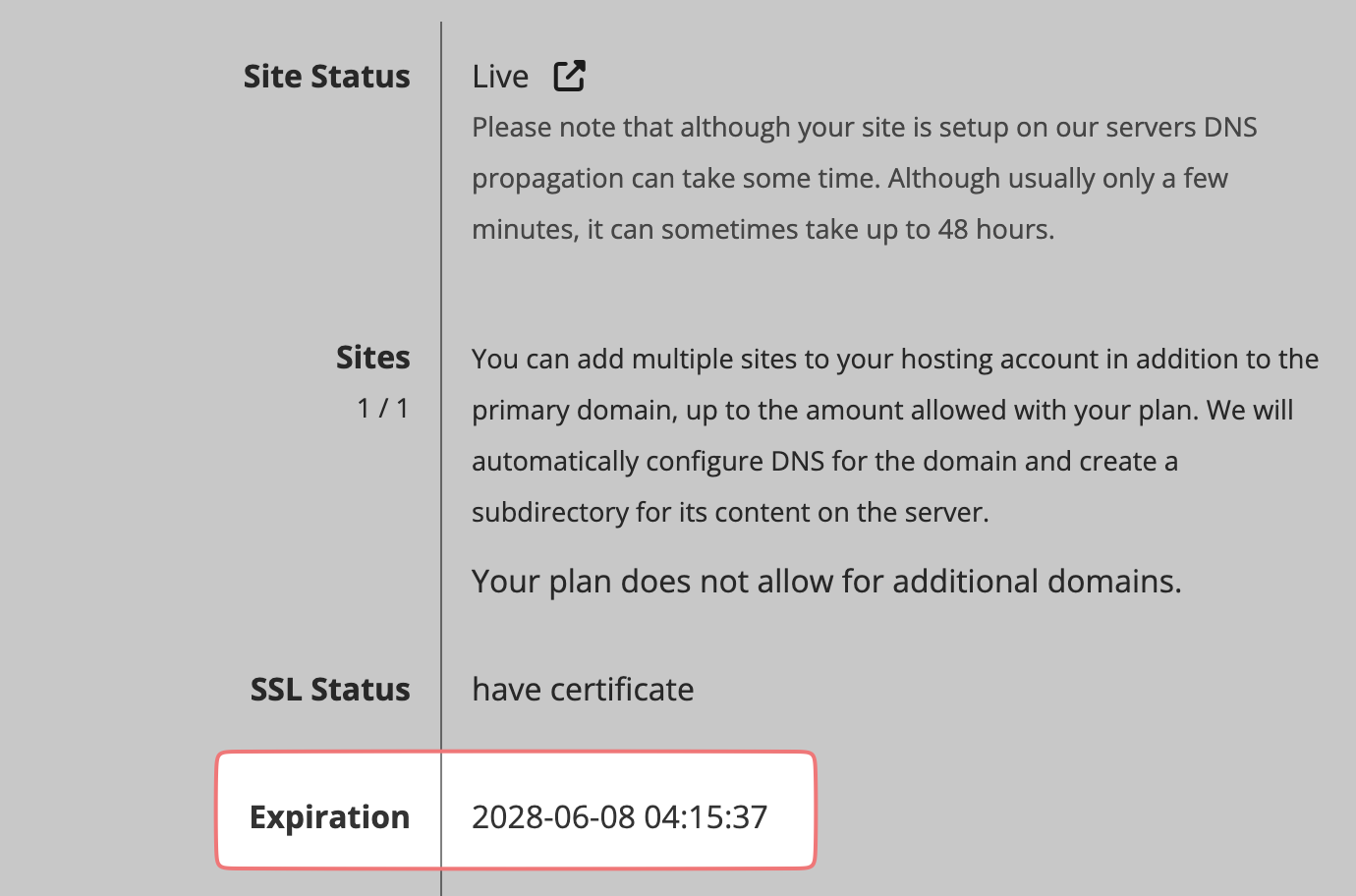
That's it! Once the plan has been renewed, you can view the new expiration date by navigating back to the main hosting page for your domain and scrolling down to "Expiration".
Feel free to get in touch with our support team if you run into any issues managing your cPanel hosting subscription.
