How to Recover Your Account Without Your Email or 2FA Codes
If you can still get email at your account's primary or backup address, you can recover your account yourself in a few minutes: follow How to Reset Your Password.
This guide covers the harder cases: lost two-factor codes, a lost phone, or an email address you can no longer reach.
Lost your authenticator app or backup codes
1
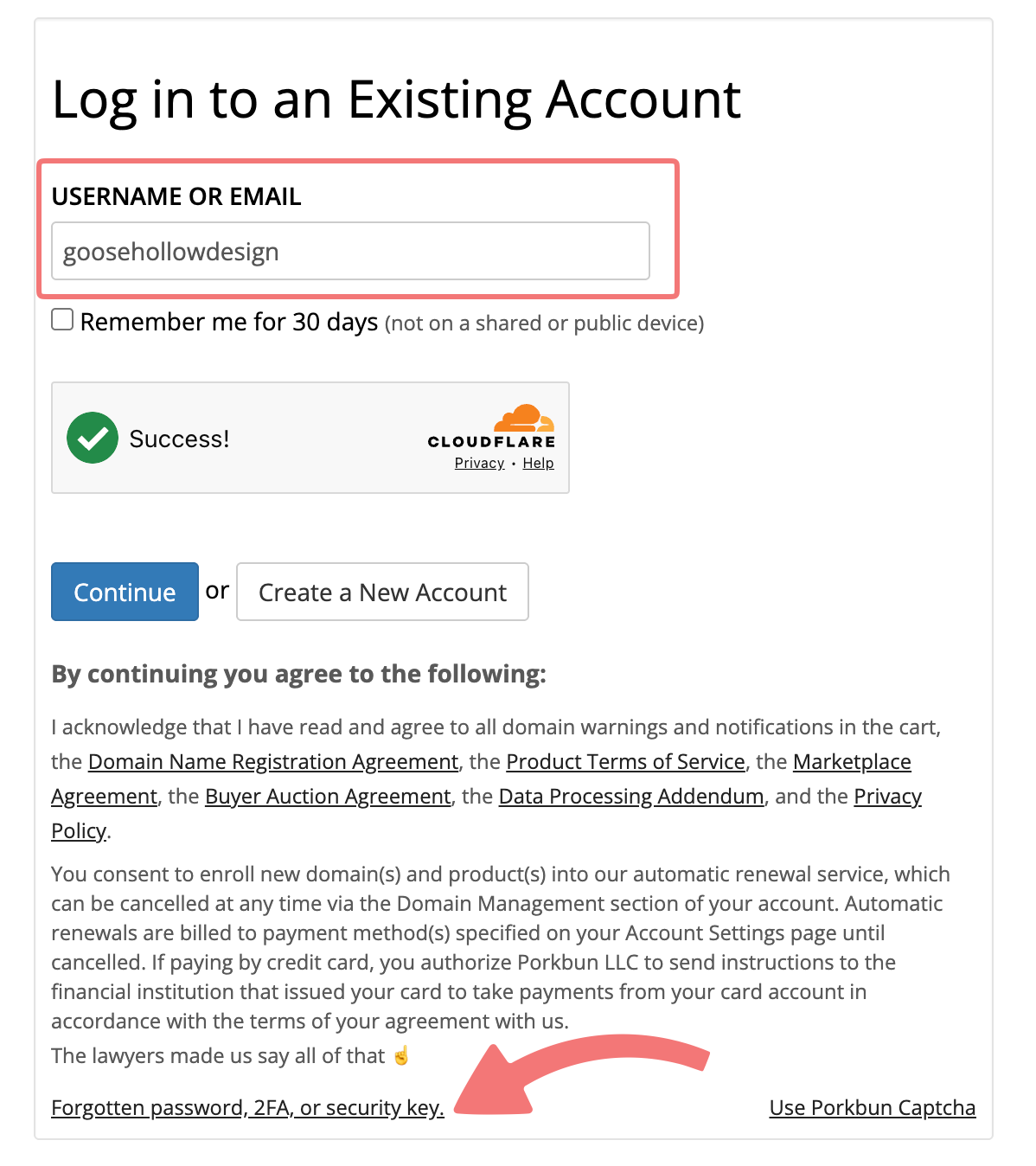
Start the normal recovery process. On the login page, enter your username or primary email address then click Forgotten password, 2FA, or security key at the bottom of the form.
2
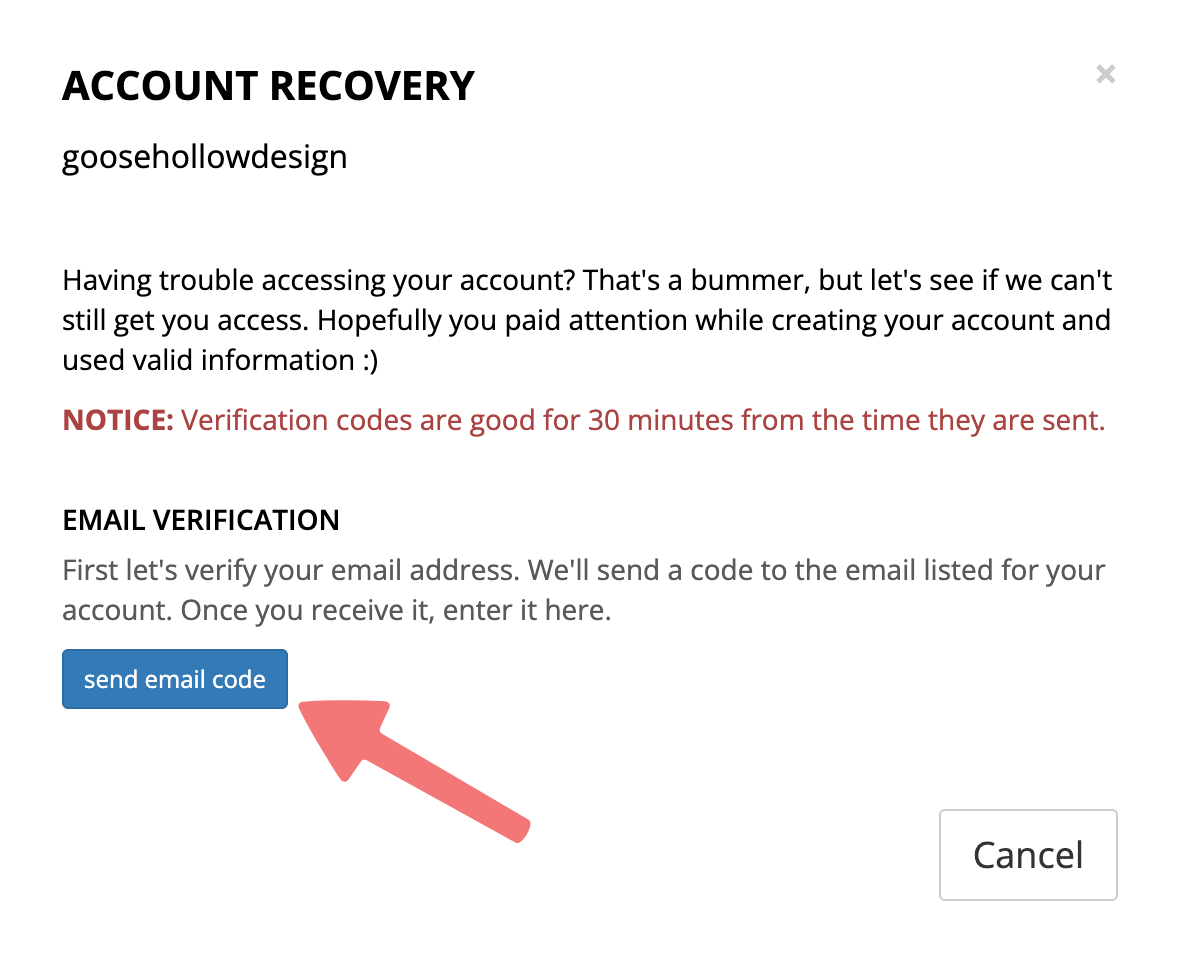
On the menu that appears, click send email code and then enter (or copy/paste) the code we send to your email address.
3
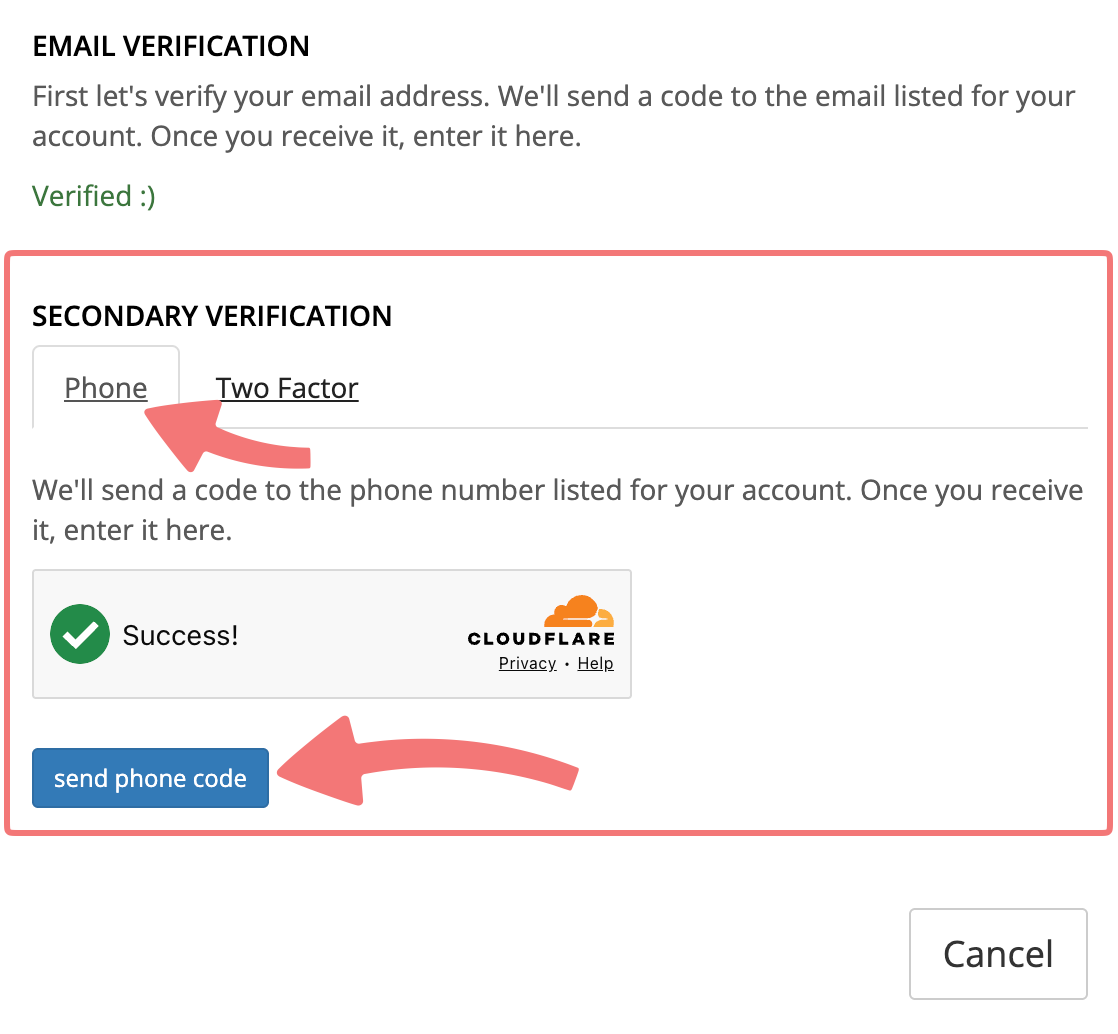
If your account has app-based 2FA turned on, you'll then get a second verification step. Choose the Phone tab and then click send phone code to get a code send via SMS to the phone number on your account. You do not need your authenticator app or backup codes for this.
That's it! Once you've entered both codes you'll regain access to your account. You can then set a new 2FA method back up, or change your account settings to avoid getting locked out again in the future.
Lost access to your email (and your phone)
If you cannot receive the email code, or you have 2FA turned on and cannot receive texts at the phone number on your account, contact our support team and ask for an account recovery. Here is how it works:
1
We email you a secure recovery link. It is valid for about three days.
2
The form asks for details only the account owner is likely to know: your username, the email and contact details on the account, some domains in it, and how you paid (for example the last four digits and expiry date of your card). Fill out this information to the best of your knowledge, even if you don't have every single required detail.
3
After submitting the form, we will automatically email you a link to complete a photo ID verification.
4
We also send an approve-or-deny request to the account's current email addresses and phone. If anyone with access to them denies it, the recovery is cancelled. This protects you if someone else tries to take over your account.
5
After completing the form and ID verification, let our support team know so they can escalate your request to the team that handles account recovery. You can reply to the email you received with the account recovery form, or contact our support department directly.
The account recovery team will review your form and follow up with you via email.
Note
Account recovery is deliberately not fast, because it hands control of an account to someone who cannot prove access the usual way. Please give accurate information: details that do not match can stop the recovery.
If "Disable Forgotten Password" is enabled
If your account has Disable Forgotten Password turned on, no recovery codes are sent from the login page at all. Contact our support team directly for help in this situation.
Once you are back in, add a backup email and check your phone number on the Settings/Billing page so it is easier to access your account next time. Feel free to reach out to our support team with any questions.