How to Edit DNS Records
Wondering where to add, remove, or change DNS records for your domain? We’ve taken the mystery out of the process and will walk you through it step-by-step! Read on, and by the end of the guide you'll be editing DNS records like a pro.
How to add new DNS records
- 1
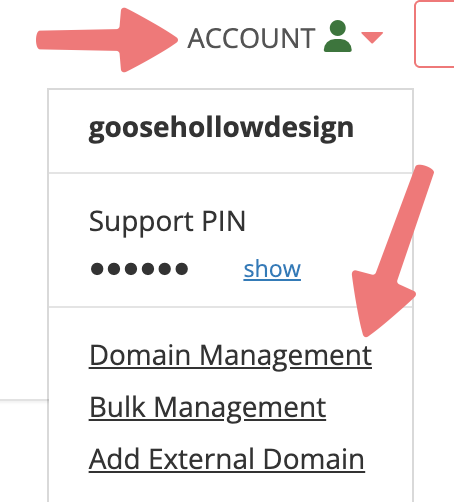
- Log in to your Porkbun account and you should arrive at the Domain Management screen. If you're already logged in, click on ACCOUNT in the top-right corner and select "Domain Management" from the dropdown menu.
2
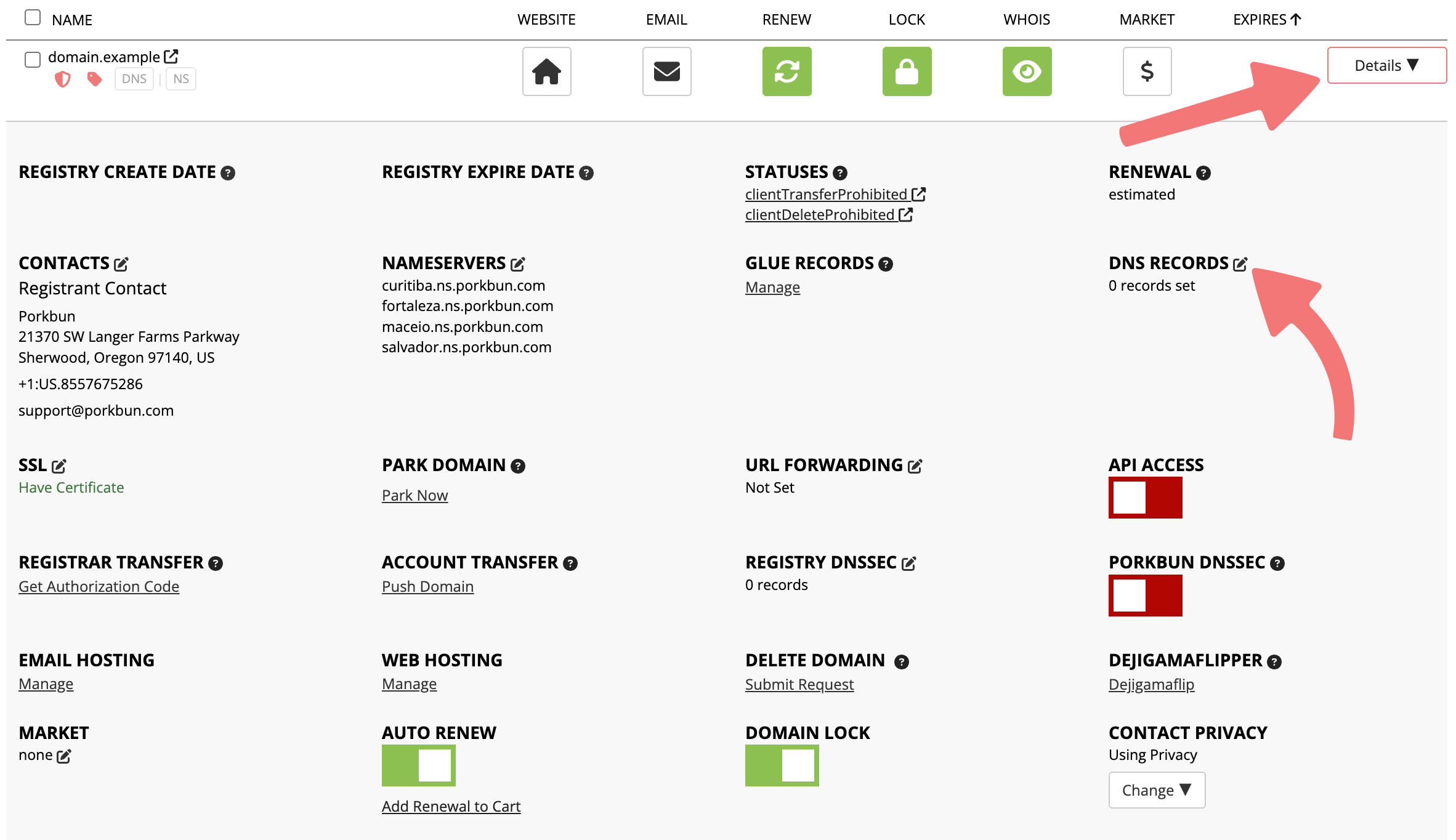
Locate your domain and click the "Details" button all the way to the right. In the Details menu that appears, locate the "DNS Records" option and select the edit icon.
3
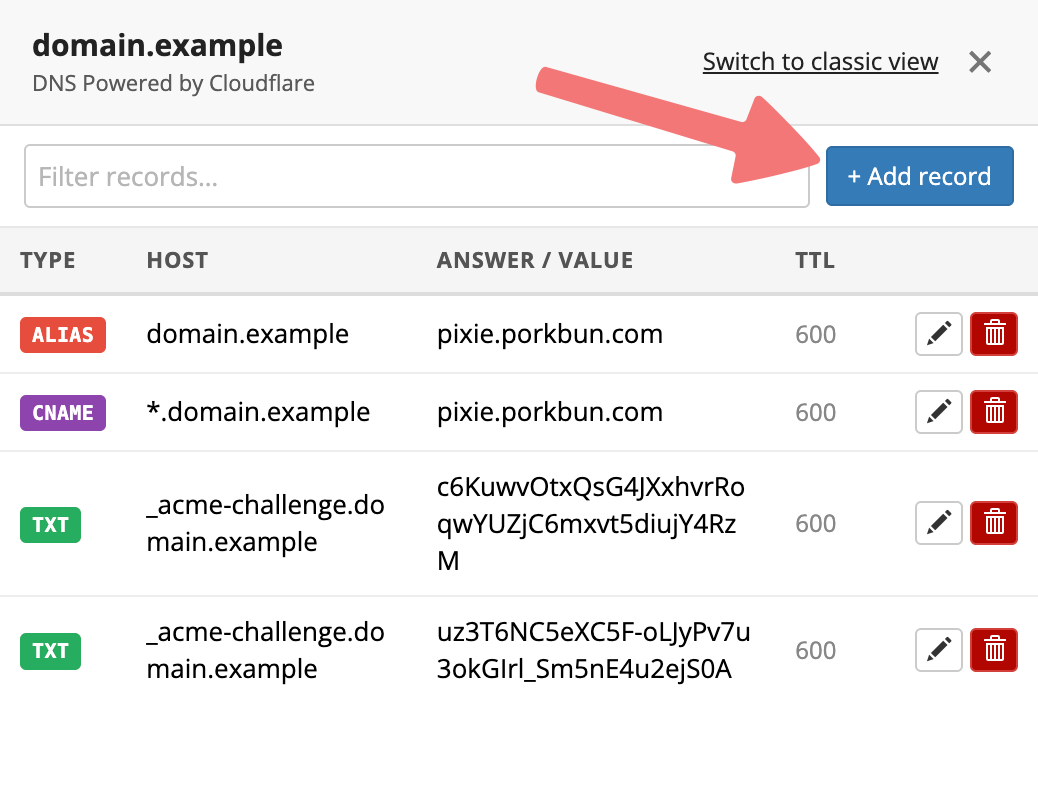
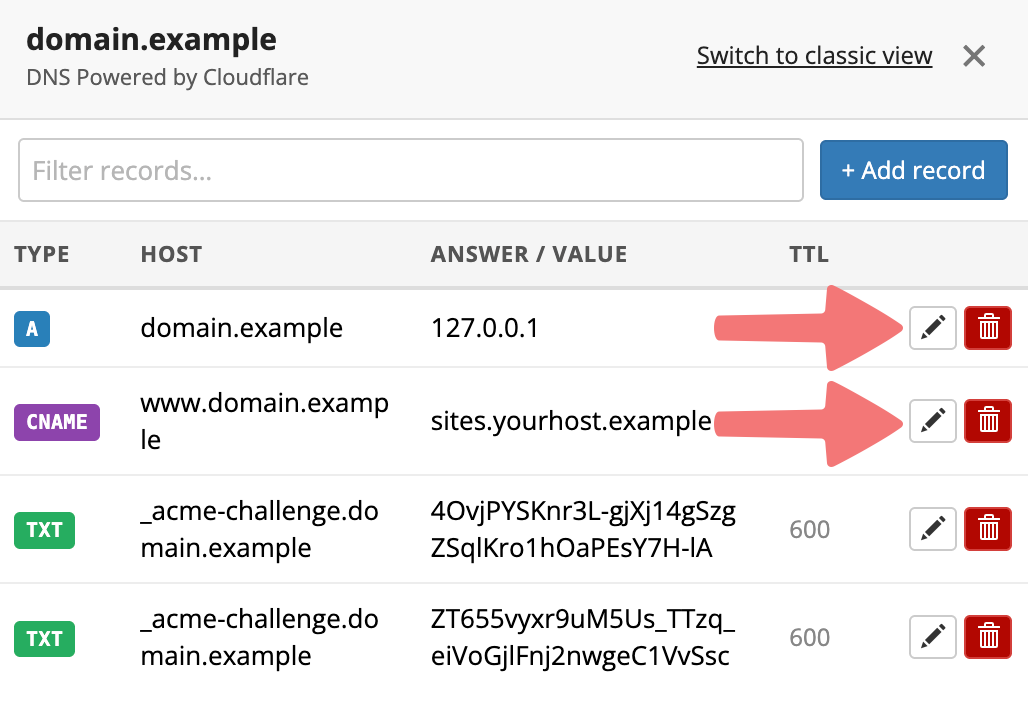
The "Manage DNS Records" menu will appear. This menu shows all of the current DNS records that are applied to your domain.
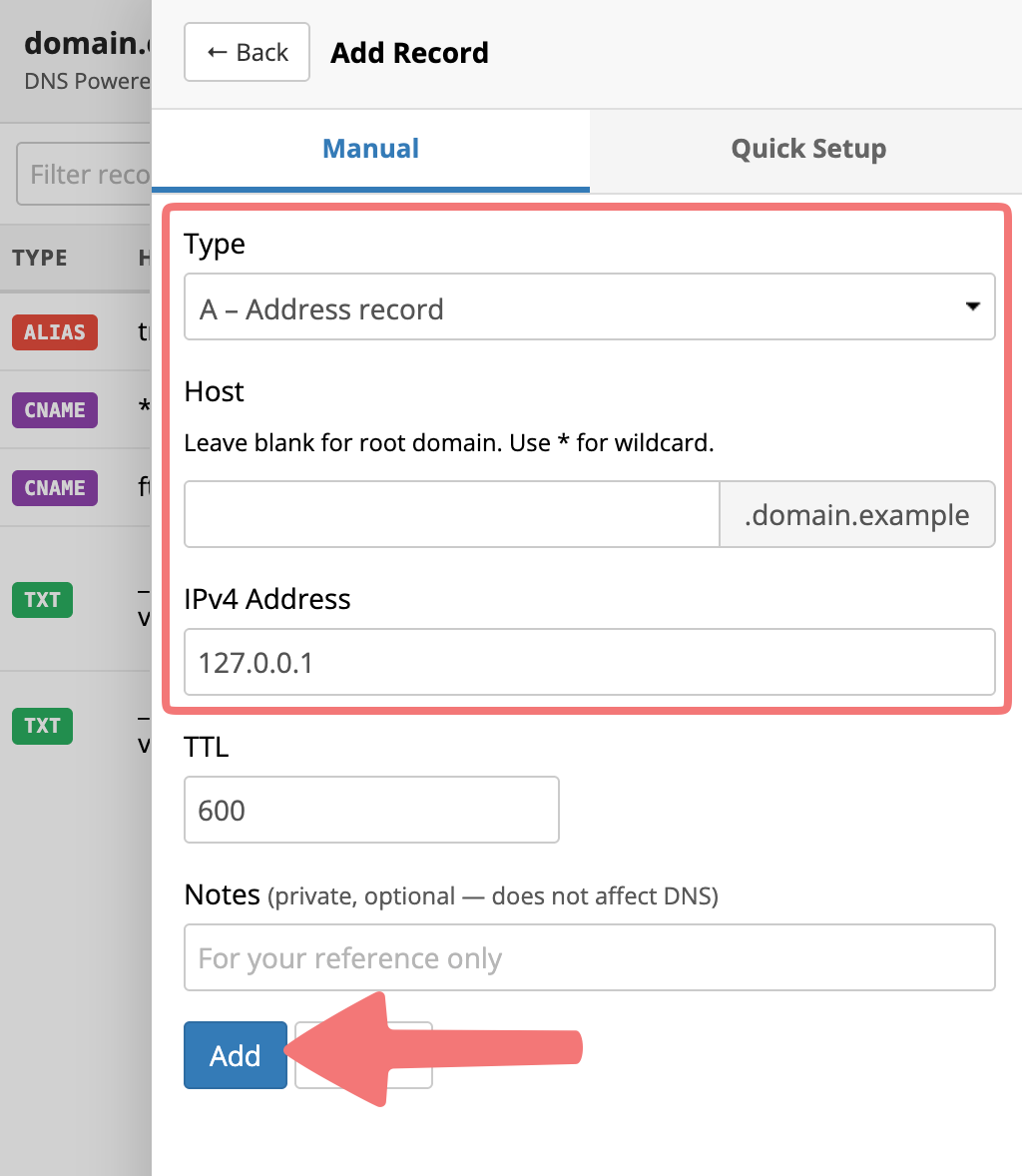
Click on the "Add Record" button to open another menu that will allow you to create a new record.
Here you can create new DNS records by specifying the type of record, the Host name (also known as the subdomain), the Answer/Value of the record, and a few other options such as the TTL (time to live) and a field for leaving notes.
Once you've entered the required information for your record, click on the "Add" button at the bottom of the menu.
Note
If you see an error message stating that "A CNAME or ALIAS record with that host already exists", you can follow this guide for information on how to fix that error.
4
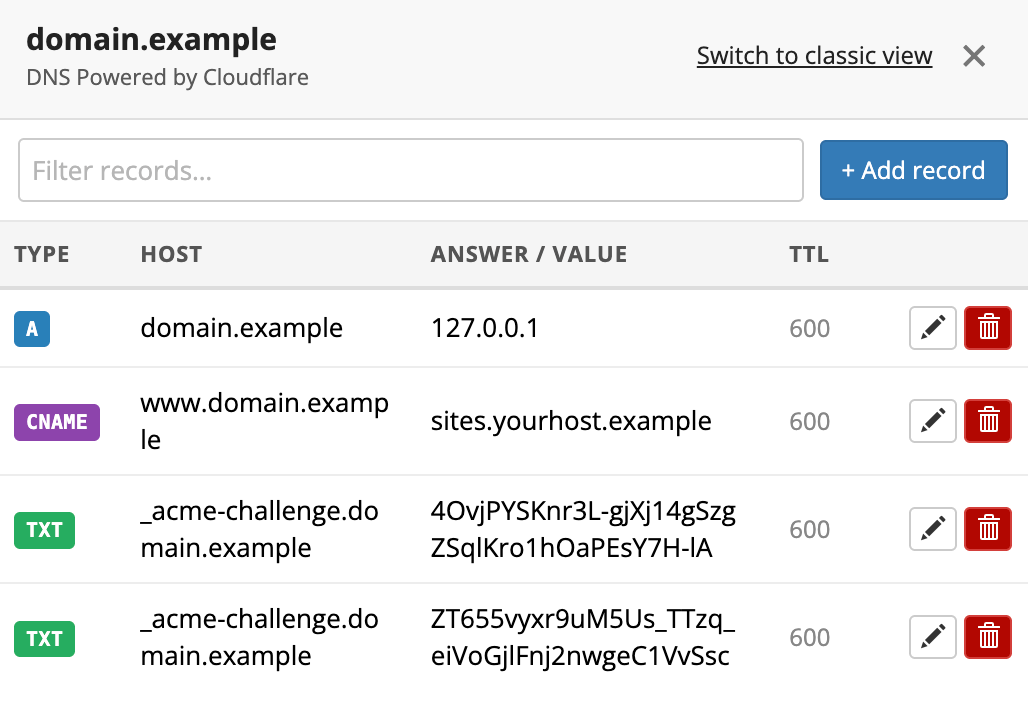
After creating your new record, click on the "Back" button at the top to return to the main DNS records menu. You will see the new record you created, in the list with all of your other domain's records. Nicely done!
For more specific information about adding new DNS records and what the different record types mean, check out our dedicated guide on adding DNS records.
How to edit existing DNS records
1
Log in to your Porkbun account and you should arrive at the Domain Management screen. If you're already logged in, click on ACCOUNT in the top-right corner and select "Domain Management" from the dropdown menu.
2
Locate your domain and click the "Details" button all the way to the right. In the Details menu that appears, locate the "DNS Records" option and select the edit icon.
3
The "Manage DNS Records" menu will appear. This menu will show all of the currently applied records on your domain. Find the record you wish to edit, and click on the pencil icon to the right of that record.
4
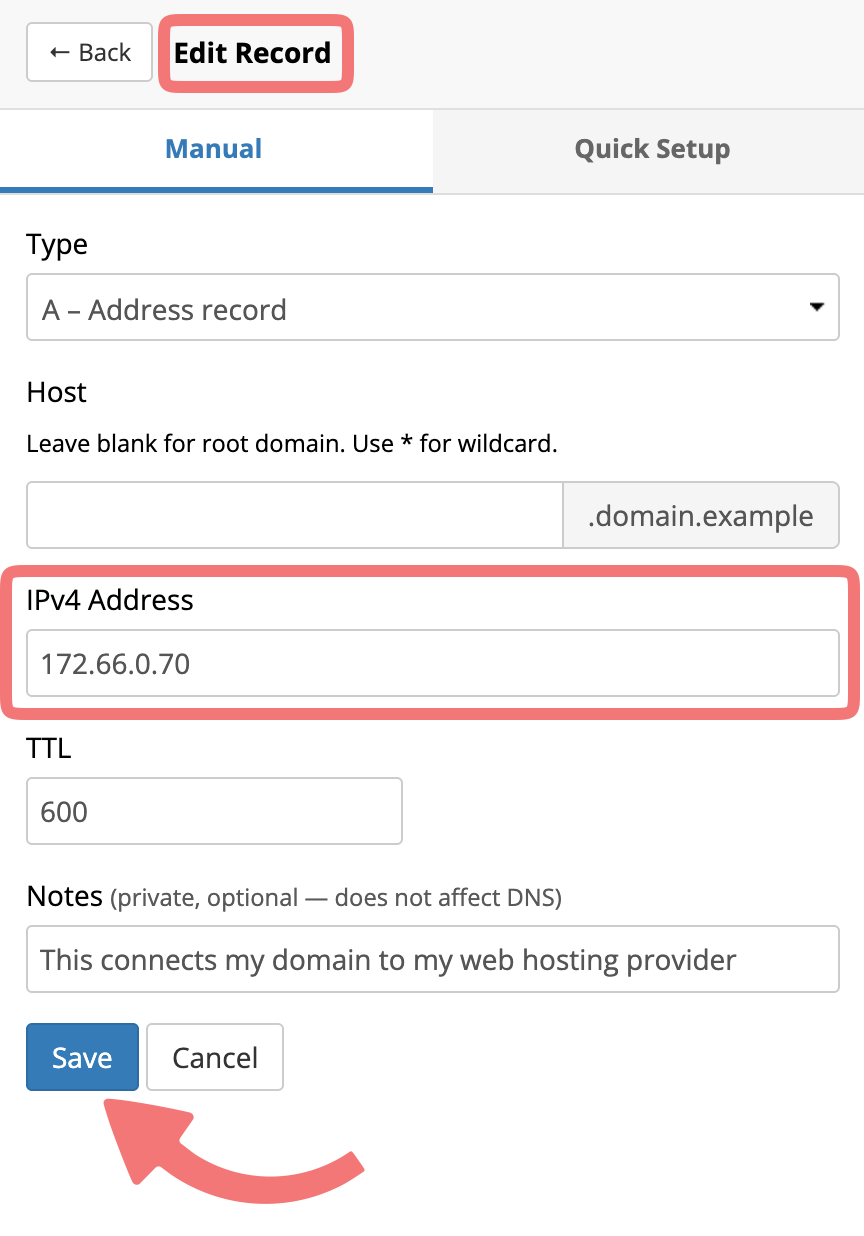
You'll see the DNS editing menu show up, which will allow you to edit the existing record. Make the changes you want to apply to the record, and once you're finished click on the save button.
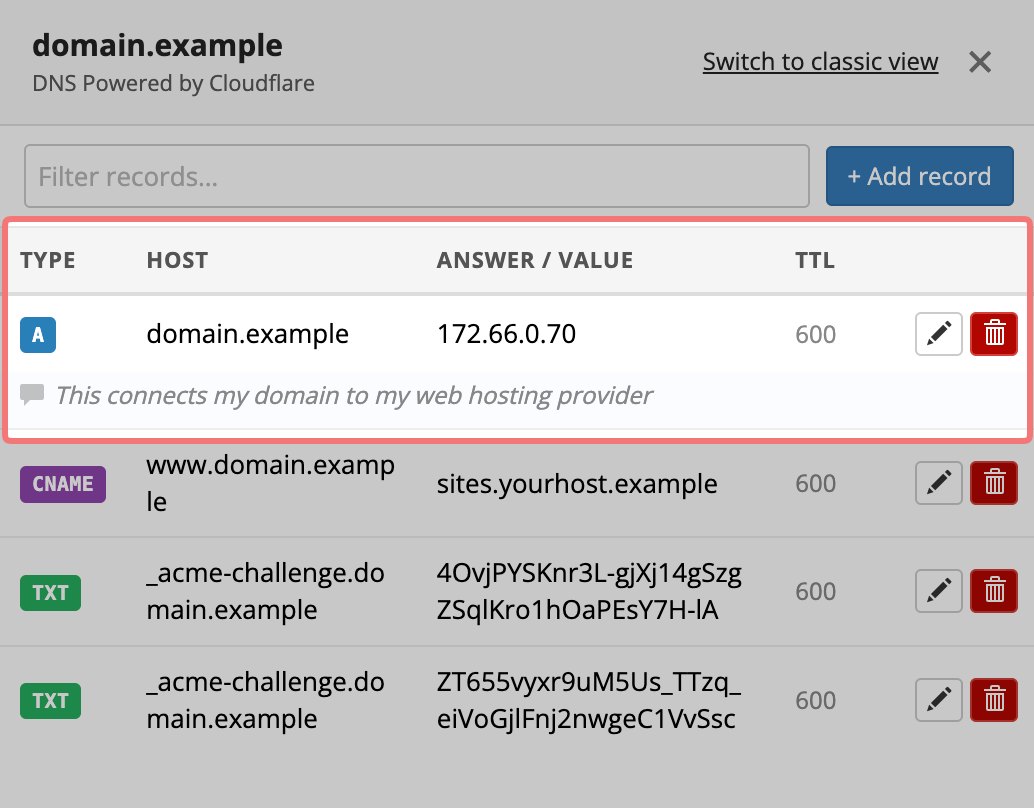
You'll then see the record applied to your domain with the new information you inputted!
Note
If you run into any error messages when editing an existing DNS record, you can usually fix the problem by deleting the record altogether, then adding the correct record from scratch.
How to delete DNS records
1
Log in to your Porkbun account and you should arrive at the Domain Management screen. If you're already logged in, click on ACCOUNT in the top-right corner and select "Domain Management" from the dropdown menu.
2
Locate your domain and click the "Details" button all the way to the right. In the Details menu that appears, locate the "DNS Records" option and select the edit icon.
3
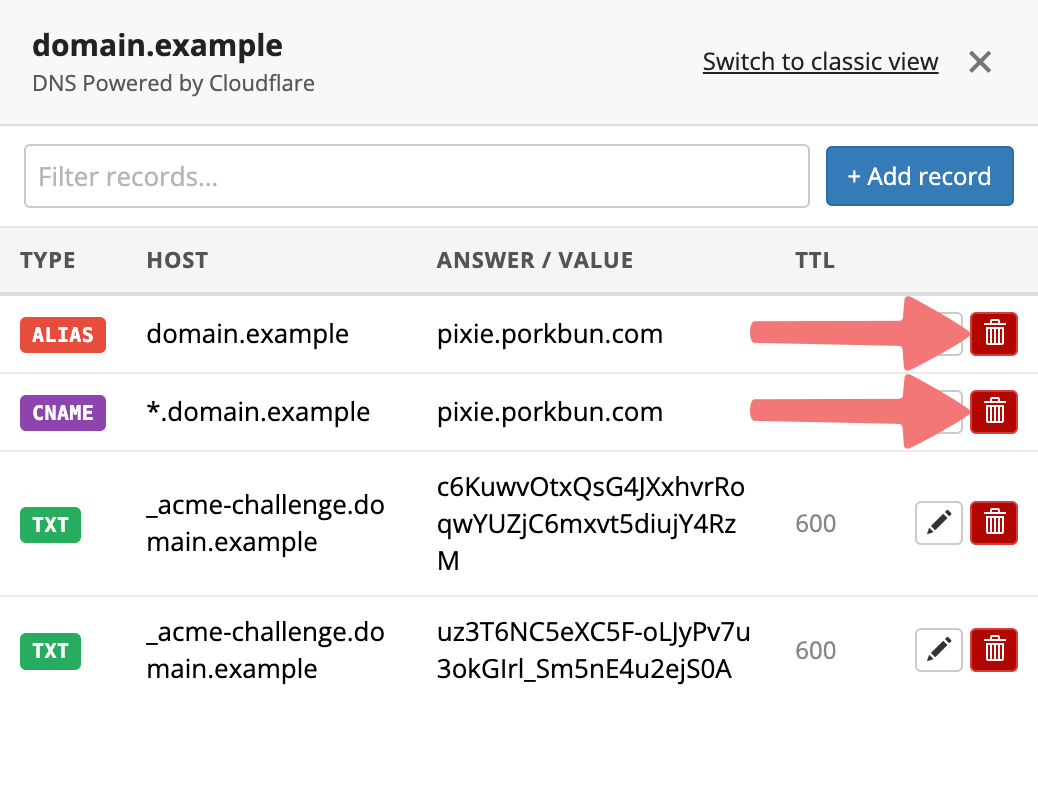
The "Manage DNS Records" menu will appear. This menu will show all of the currently applied records on your domain. Find the record you wish to delete, and click on the trash can icon to the right of that record.
4
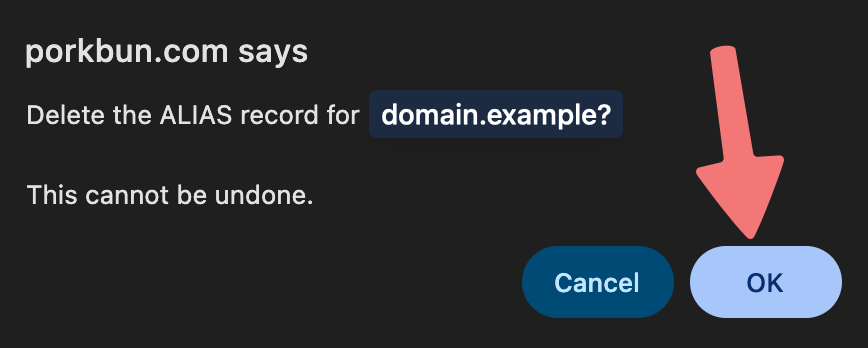
Click "OK" on the confirmation pop-up window to finish deleting your record. That's all you need to do!
Congratulations! You've learned how to edit the DNS records for your domain. The specific records you'll add and edit will depend on what service you're trying to connect your domain to. Most of the time, the provider whose services you're connecting to the domain (web host, email hosting provider, etc) will directly provide you with the records you need to add on Porkbun.
Depending on your host, we may have specific instructions to help you get set up. Feel free to take a look through our "Connect Domain" articles to see if we have a guide for what you're configuring.
Note
If you're trying to switch your domain's authoritative nameservers, adding "NS" records in the DNS Records menu is not the way to do it. Check out our guide on how to change nameservers instead.
If you run into any issues managing the DNS records for your domain, feel free to get in touch with our support team for assistance.