How to set up your email address in Thunderbird
Looking to set up your Porkbun hosted email address in Thunderbird? You're in the right place! We'll show you how to set it up from a brand new installation of Thunderbird, and in the second section you'll find instructions for adding an email address to an existing installation. Let's get started.
Method 1: From a new installation of Thunderbird
2
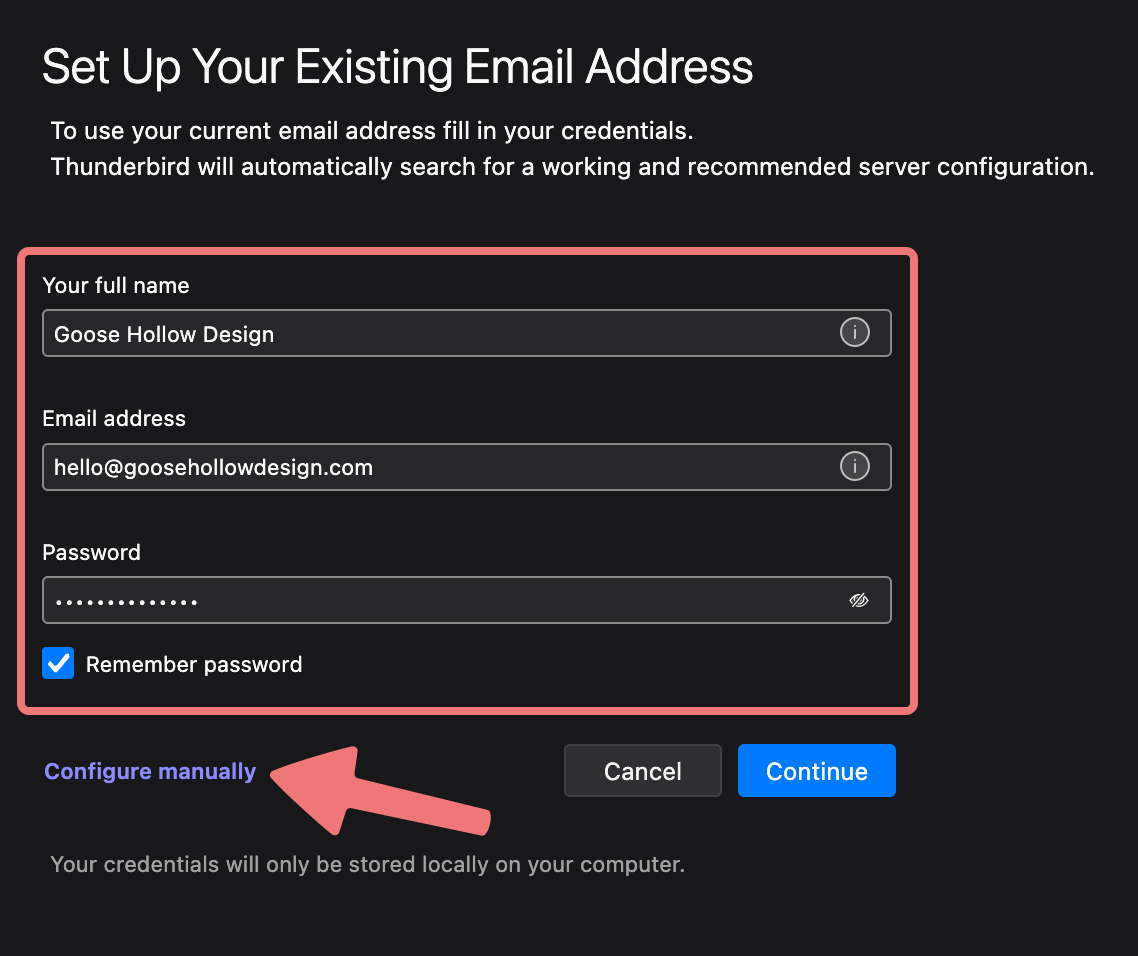
Open Thunderbird after you finish installing it. You will be prompted to enter your name (which is displayed in the header of any emails you send), as well as your hosted email address and the password you set up for it. If you don't see this screen and are automatically taken to the Thunderbird client/inbox instead, skip to the second section of this guide.
Enter your email credentials, and then click on the "Configure manually" link to see more options.
3
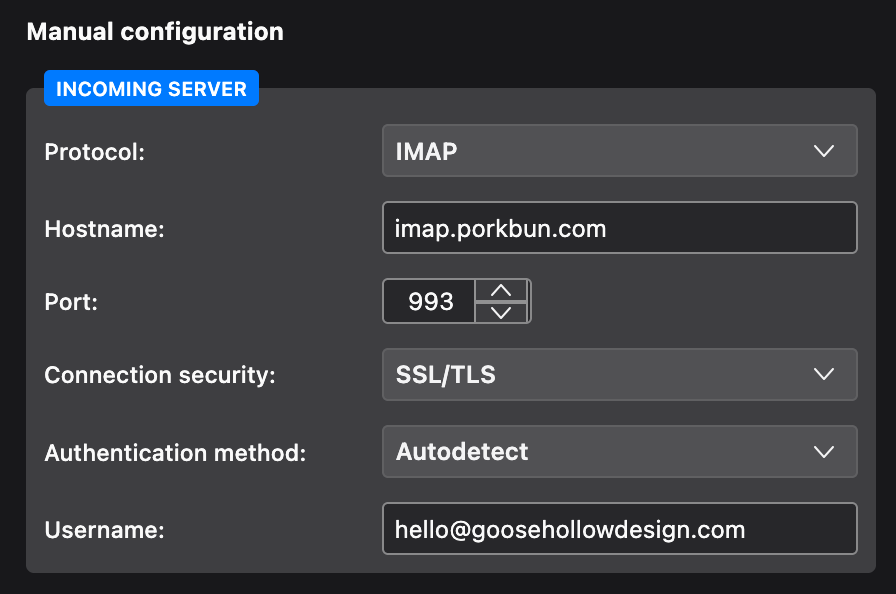
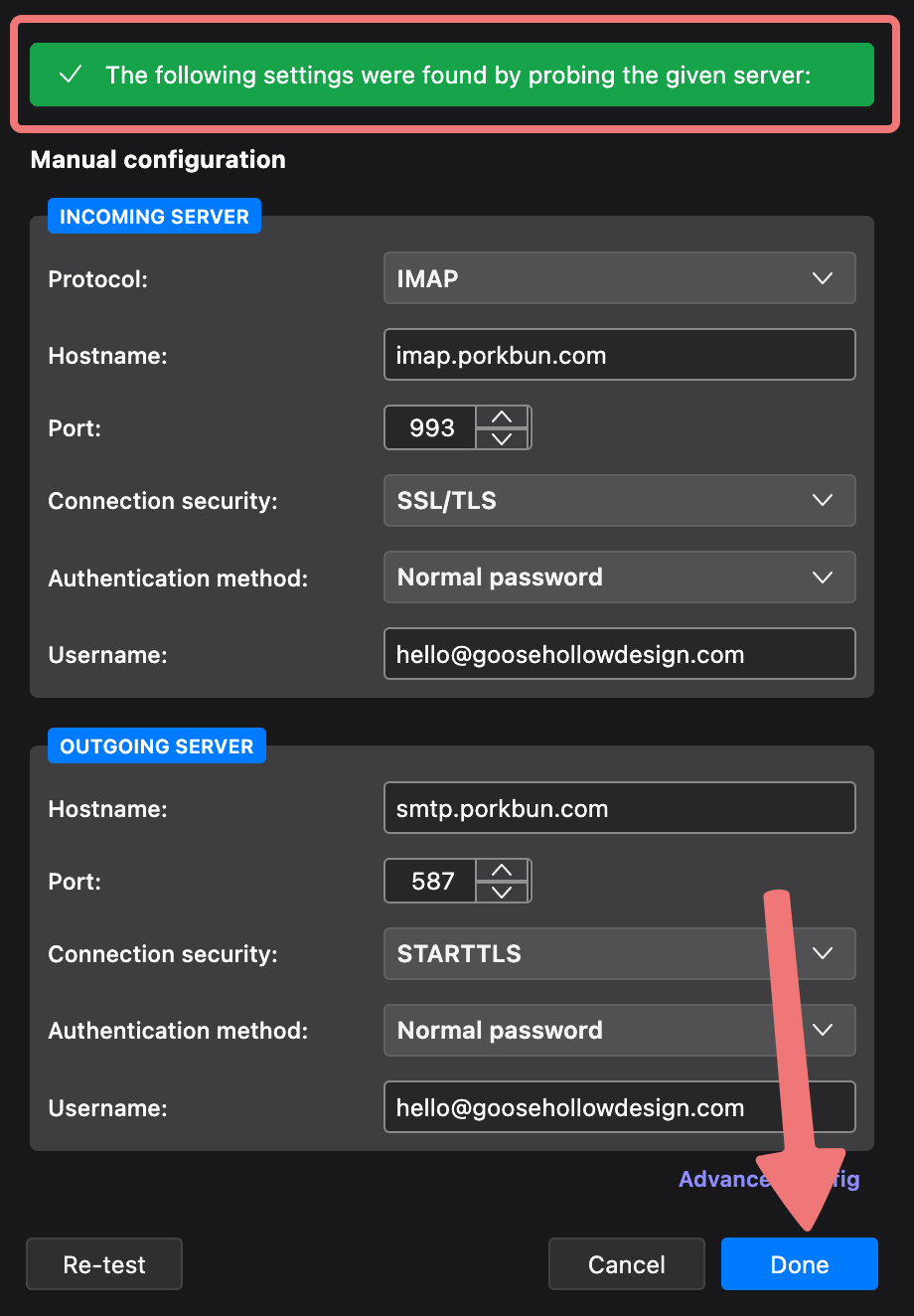
More options will appear, under a section titled "Manual configuration". In the "Incoming Server" section, enter the following settings:
- Protocol: IMAP
- Hostname: imap.porkbun.com
- Port: 993
- Connection security: SSL/TLS
- Authentication method: Autodetect
- Username: The full email address for your domain (not just the part before the @ symbol)
4
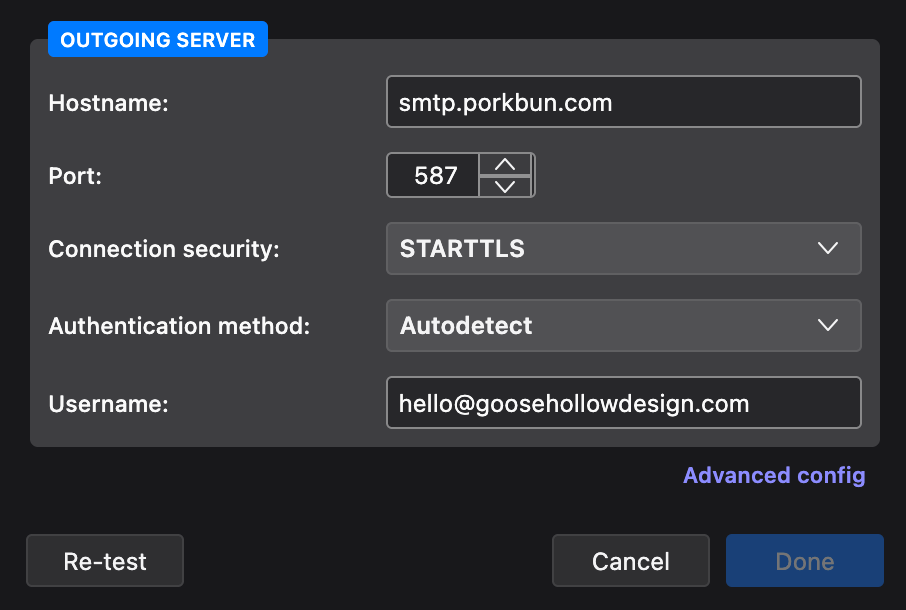
Next, enter the following settings under the "Outgoing Server" section:
- Hostname: smtp.porkbun.com
- Port: 587
- Connection security: STARTTLS
- Authentication method: Autodetect
- Username: The full email address for your domain (not just the part before the @ symbol)
5
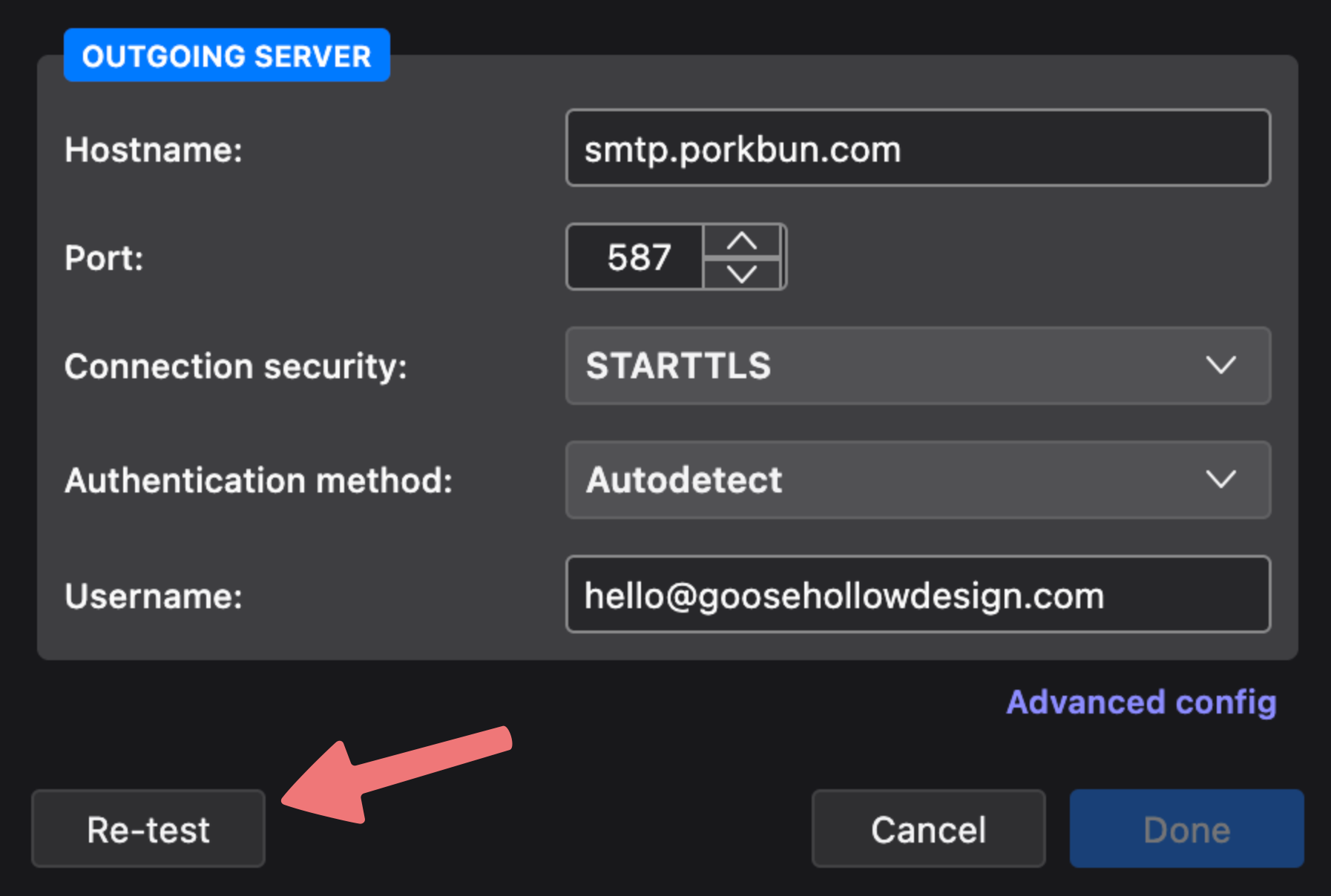
Once you've entered all of the incoming and outgoing settings, click on the "Re-test" button to make sure the connection is made successfully.
6
You should see a message indicating your settings were detected properly. After that, click on the "Done" button to finish adding your account.
7
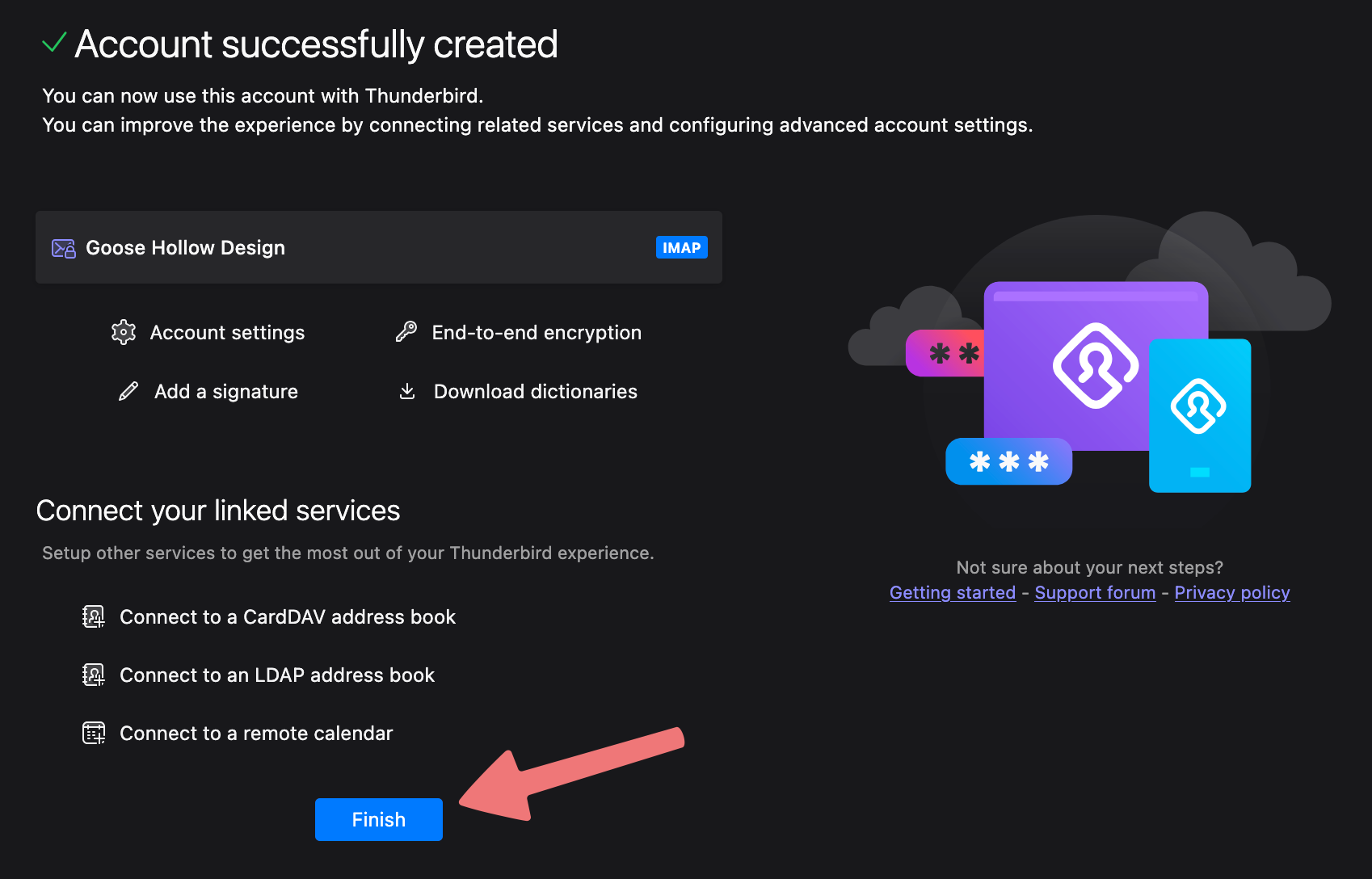
That's it! Your email address has been added to Thunderbird, and you can now use it to send and receive email for your domain. You can adjust your account settings or set up a signature on this page, or if you're ready to use the email, click on "Finish".
For more information on how to navigate and use Thunderbird, you can read through their Knowledge Base articles. Feel free to reach out to Porkbun's support team if you run into any problems getting your email address added to Thunderbird.
If you already have Thunderbird set up and you just need to add your new hosted email to the existing client, here's how that's done!
1
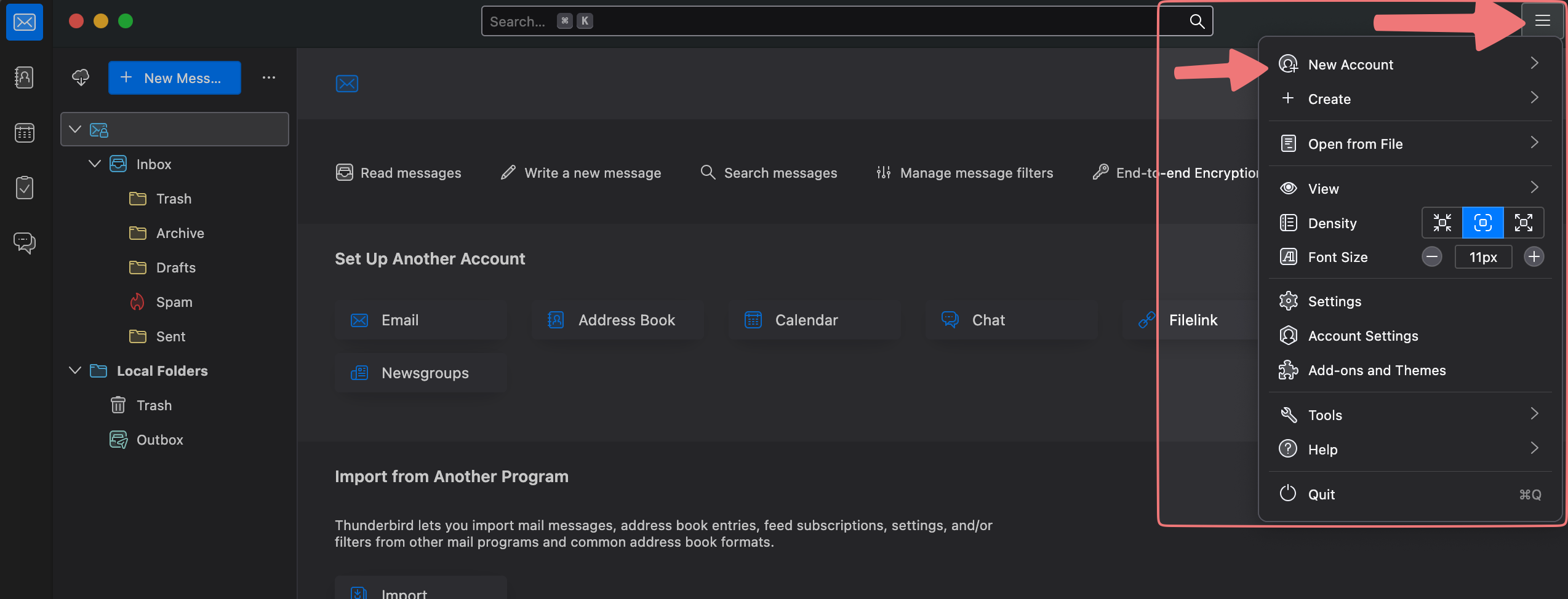
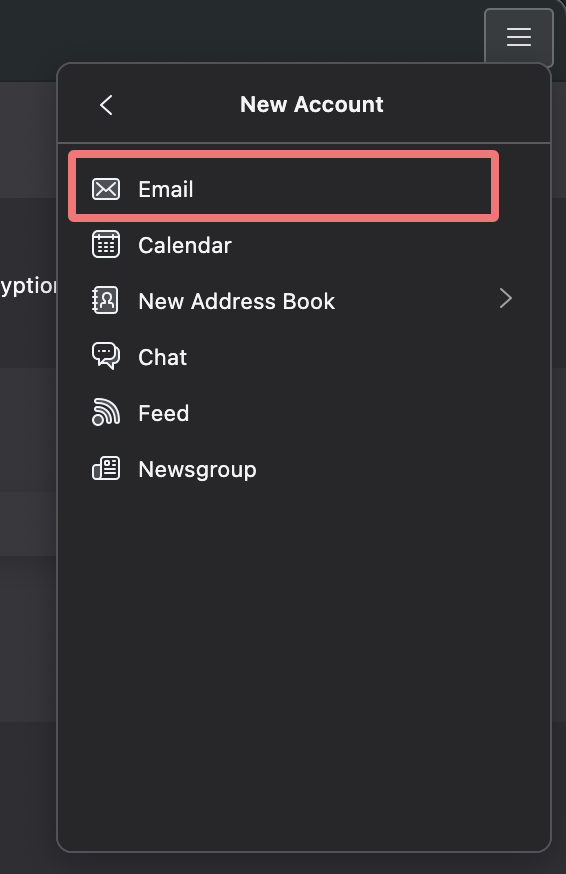
On the top right corner of the Thunderbird window, click on the hamburger menu (the icon with three bars), then click "New Account", and then "Email".
2
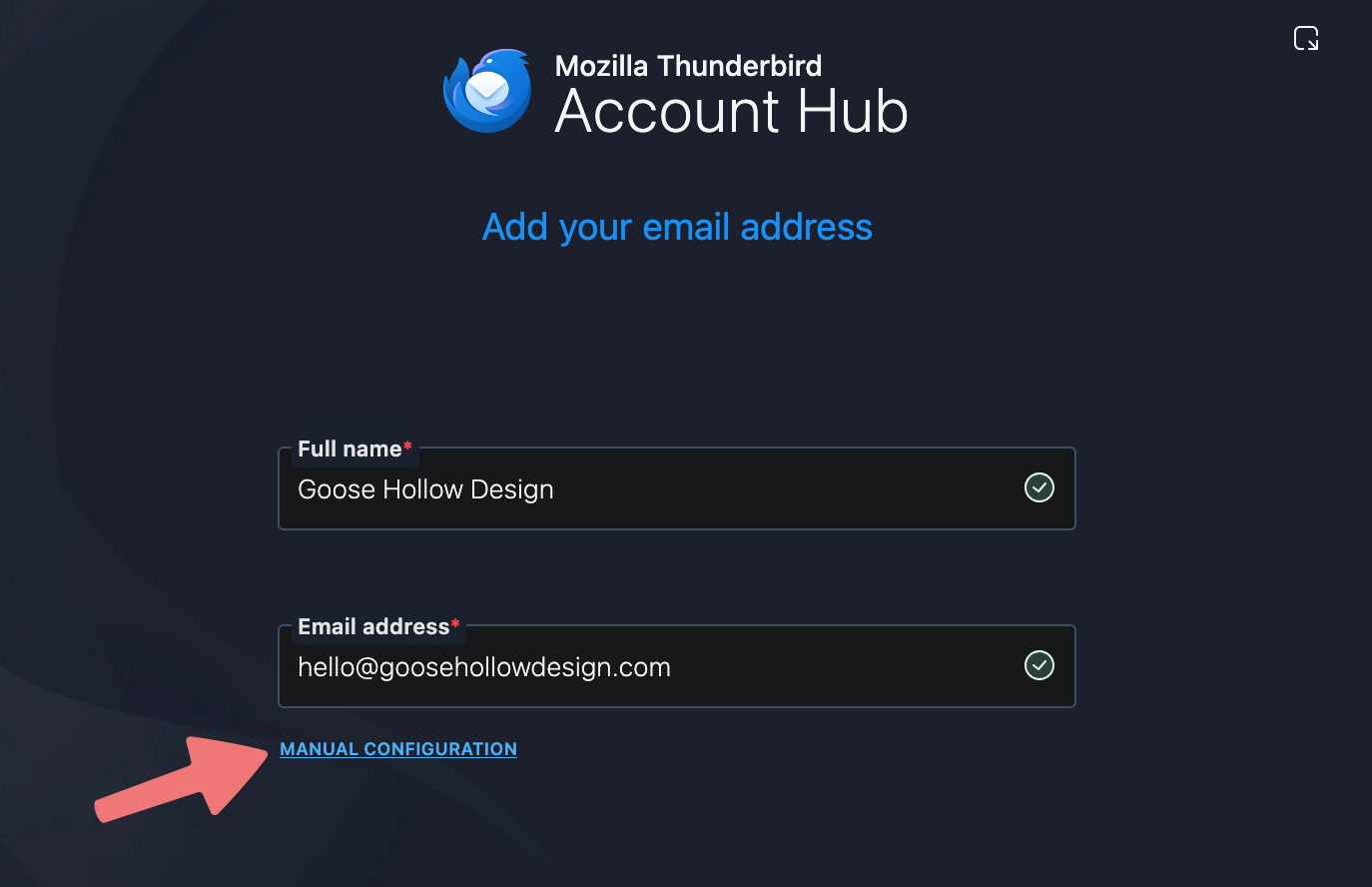
On the window that pops up, enter the display name you want to use for your emails, and the hosted email address you're adding to Thunderbird. After entering that info, click on the "Manual Configuration" option.
3
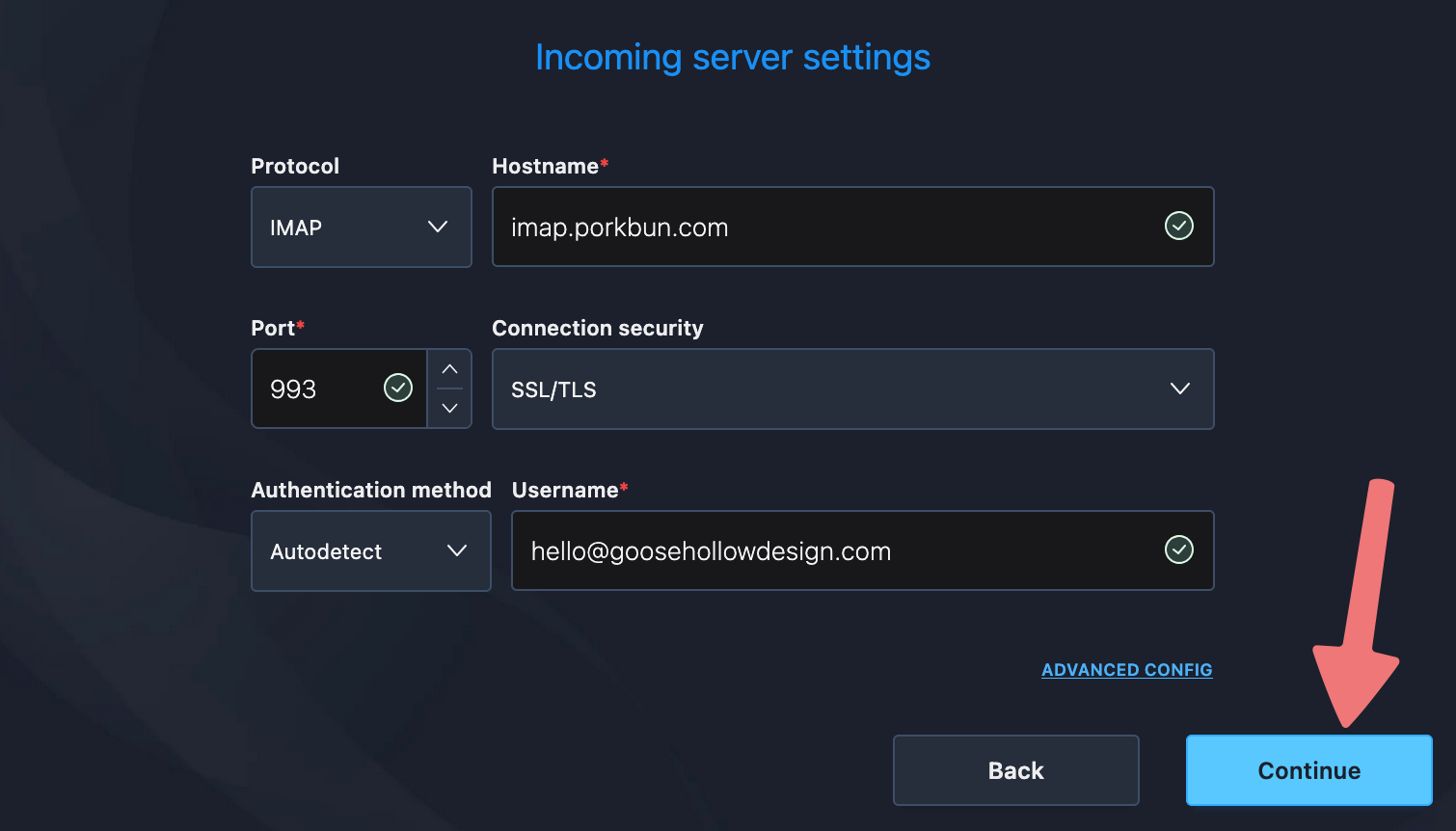
On the next screen under the "Incoming server settings" section, enter the following settings:
- Protocol: IMAP
- Hostname: imap.porkbun.com
- Port: 993
- Connection security: SSL/TLS
- Authentication method: Autodetect
- Username: The full email address for your domain (not just the part before the @ symbol)
Once that's done, click on the "Continue" button.
4
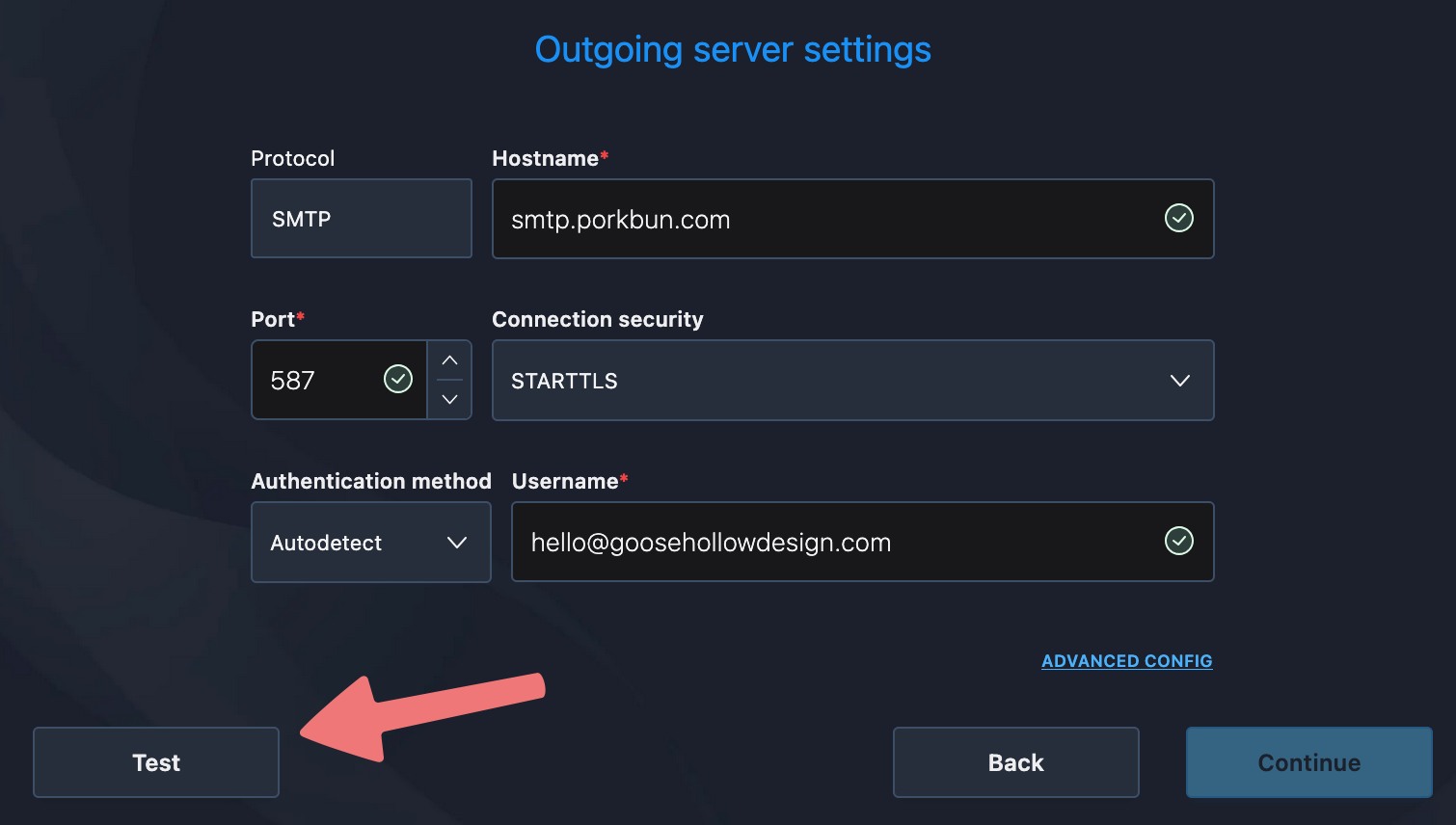
Next, under the "Outgoing server settings" section, enter the following settings:
- Protocol: SMTP
- Hostname: smtp.porkbun.com
- Port: 587
- Connection security: STARTTLS
- Authentication method: Autodetect
- Username: The full email address for your domain (not just the part before the @ symbol)
Once that's done, click on the "Test" button to make sure everything connects successfully.
5
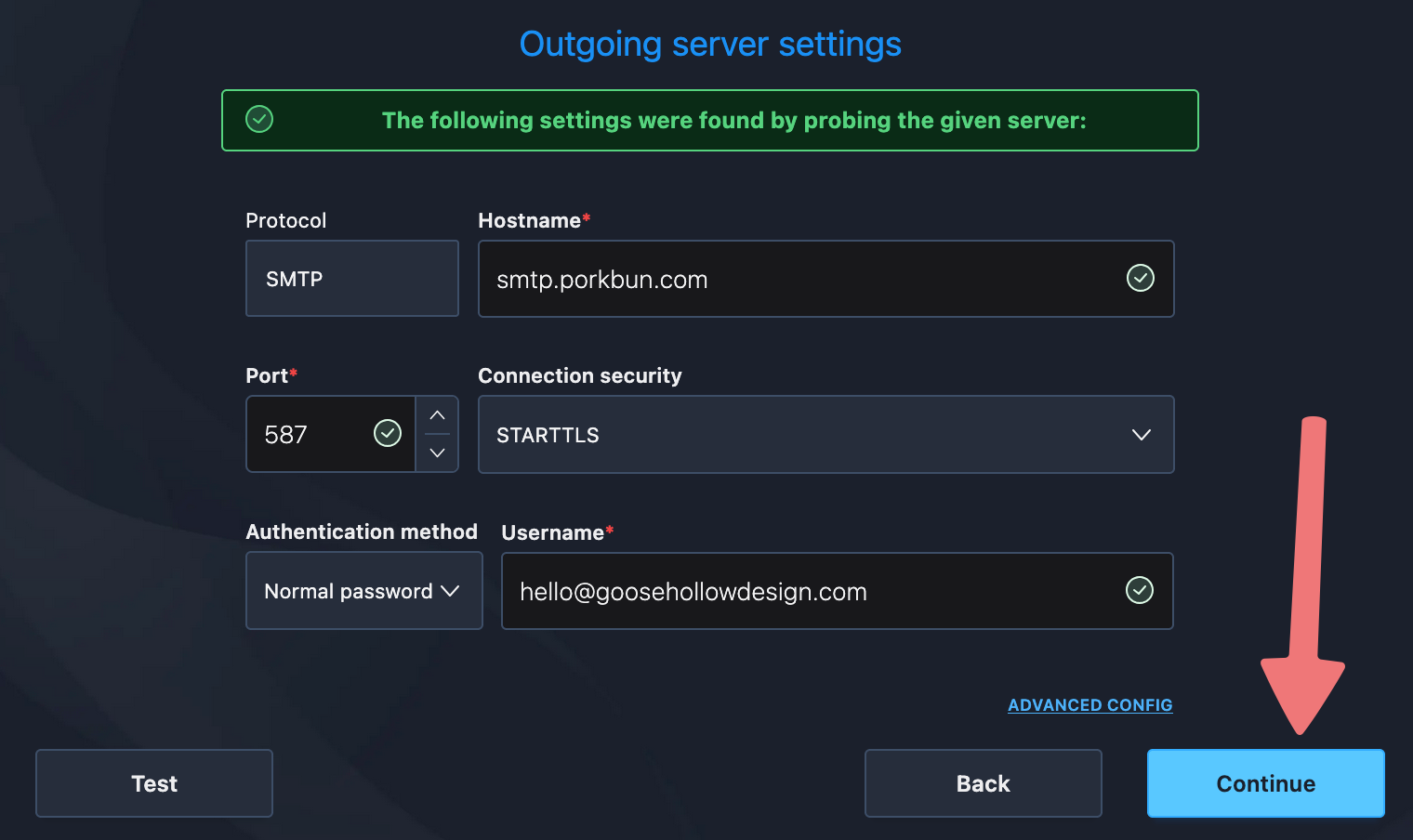
You should see a message indicating the connection was found successfully. Click on the "Continue" button.
6
You'll be prompted for the password for your hosted email address. Enter that password, then click "Continue" again.
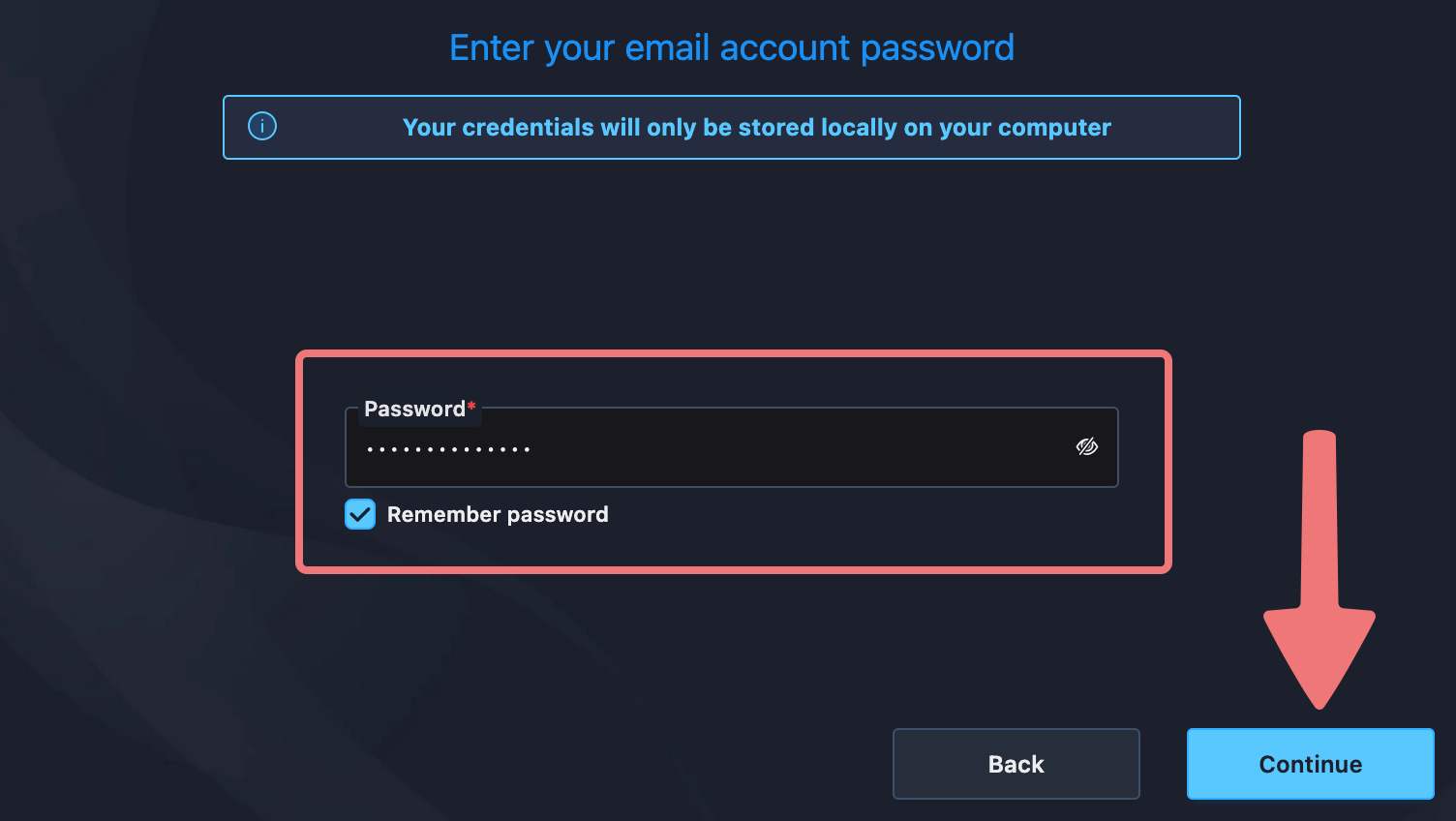
If you see an additional screen about syncing your contacts and calendars, just click on "Continue" one more time.
8
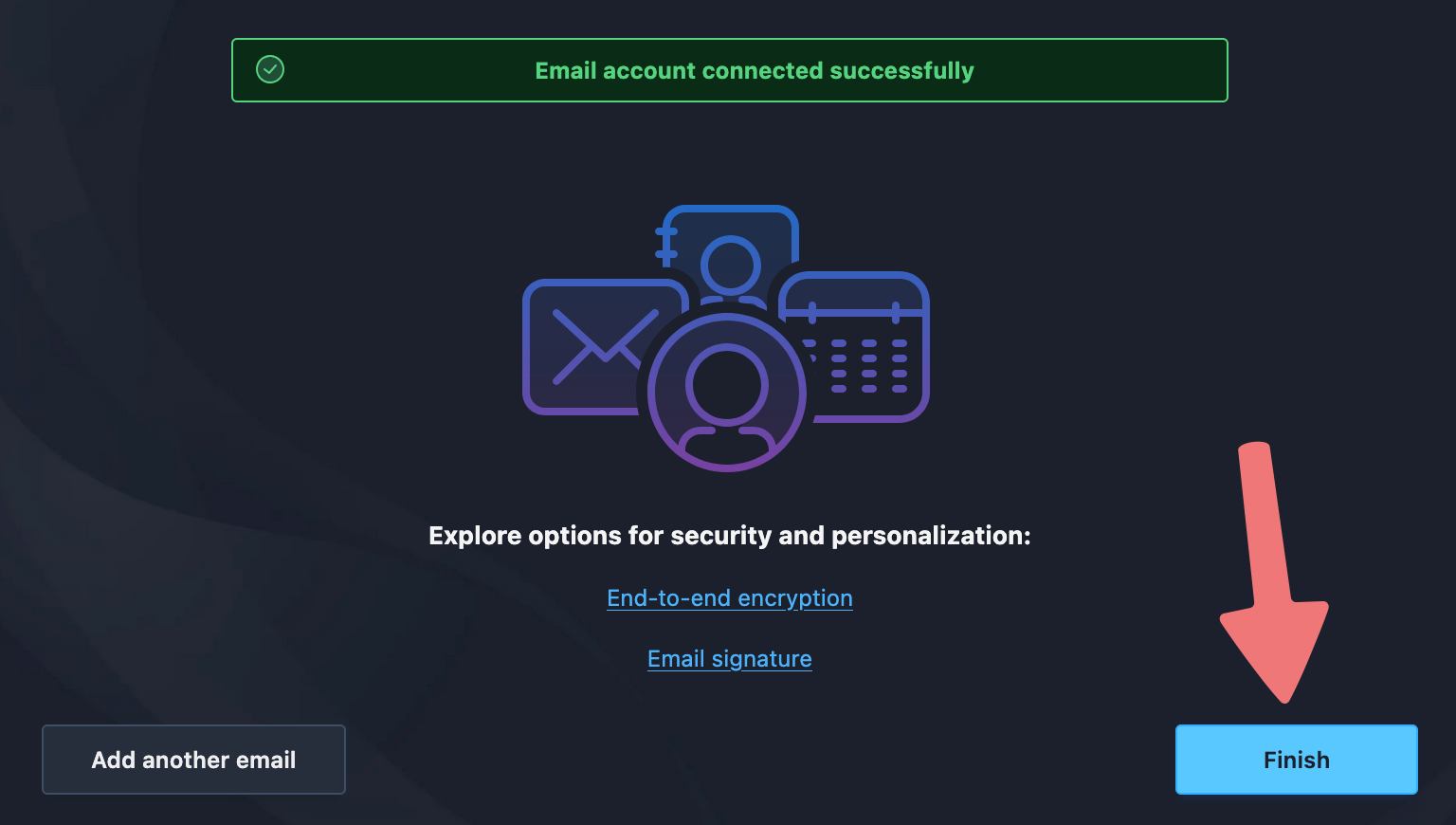
That's it! You'll see a success screen, and you can click on "Finish" to be directed to your inbox, where you can now manage your hosted email address.
For more information on how to navigate and use Thunderbird, you can read through their Knowledge Base articles.
Feel free to reach out to Porkbun's support team if you run into any problems getting your email address added to Thunderbird.
