How to configure a file manager plugin for Cloud for WordPress
If you've set up Cloud for WordPress hosting and would like more granular access to the files for your site, you can set up a file manager plugin rather than having to connect via FTP. In this guide we will be using a free plugin called Filester, but any file manager plugin should work. Let's get started!
Install file manager plugin
1
Log in to the Cloud for WordPress admin panel for your domain. For further instructions on accessing your WordPress admin panel, check out this guide.
2
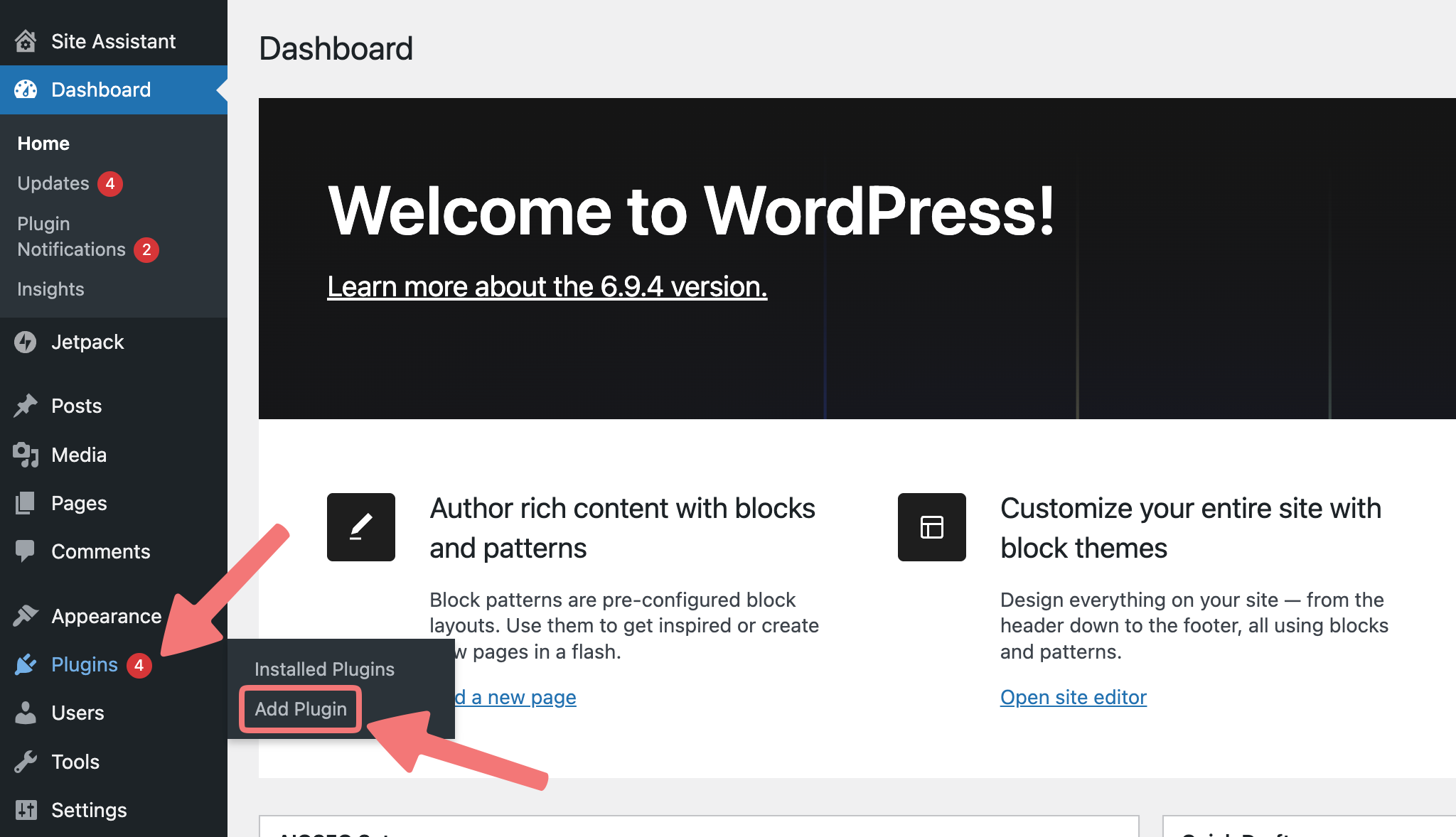
After logging in, hover over the "Plugins" option on the left-hand menu. Click on "Add Plugin".
3
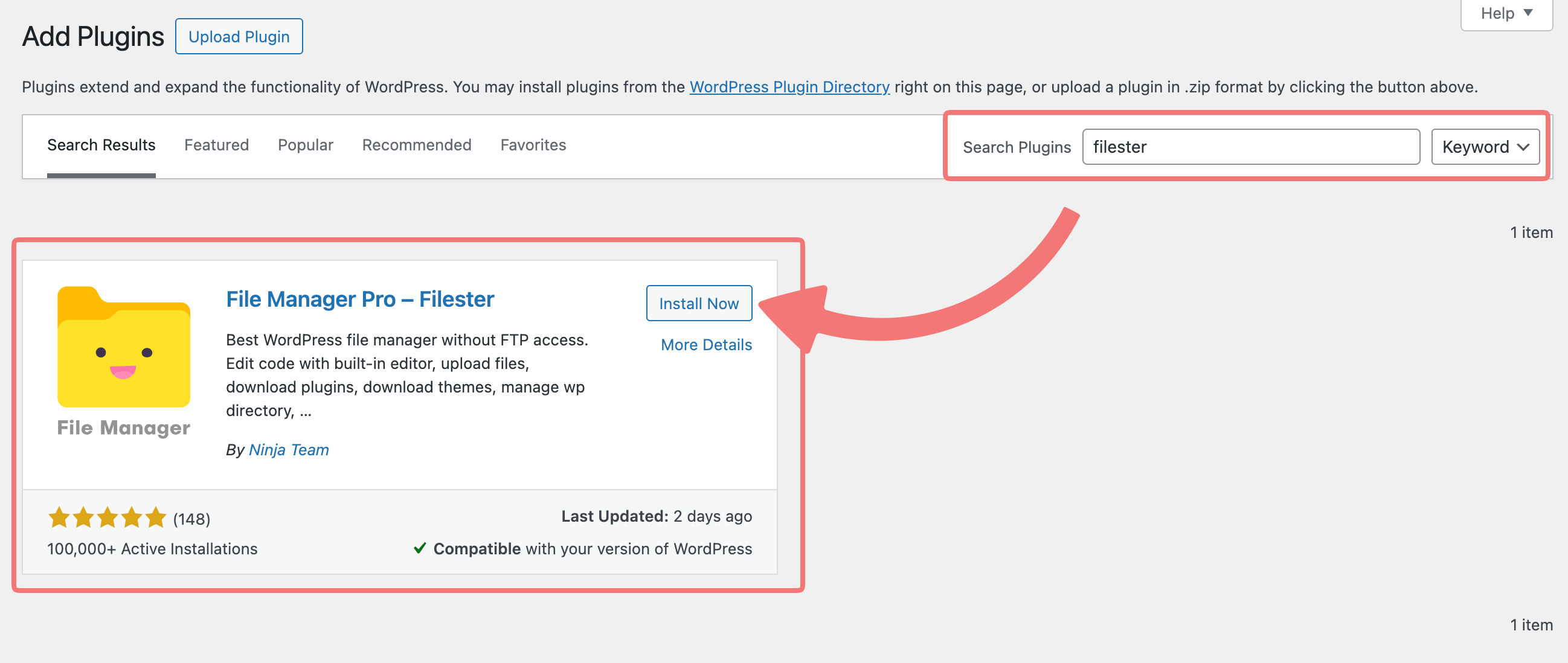
You'll be taken to a page where you can search for plugins to add to your site. In the top-right corner you'll see a search bar. Enter "filester" and the plugin will show up automatically.
Click on "Install Now" next to the plugin.
4
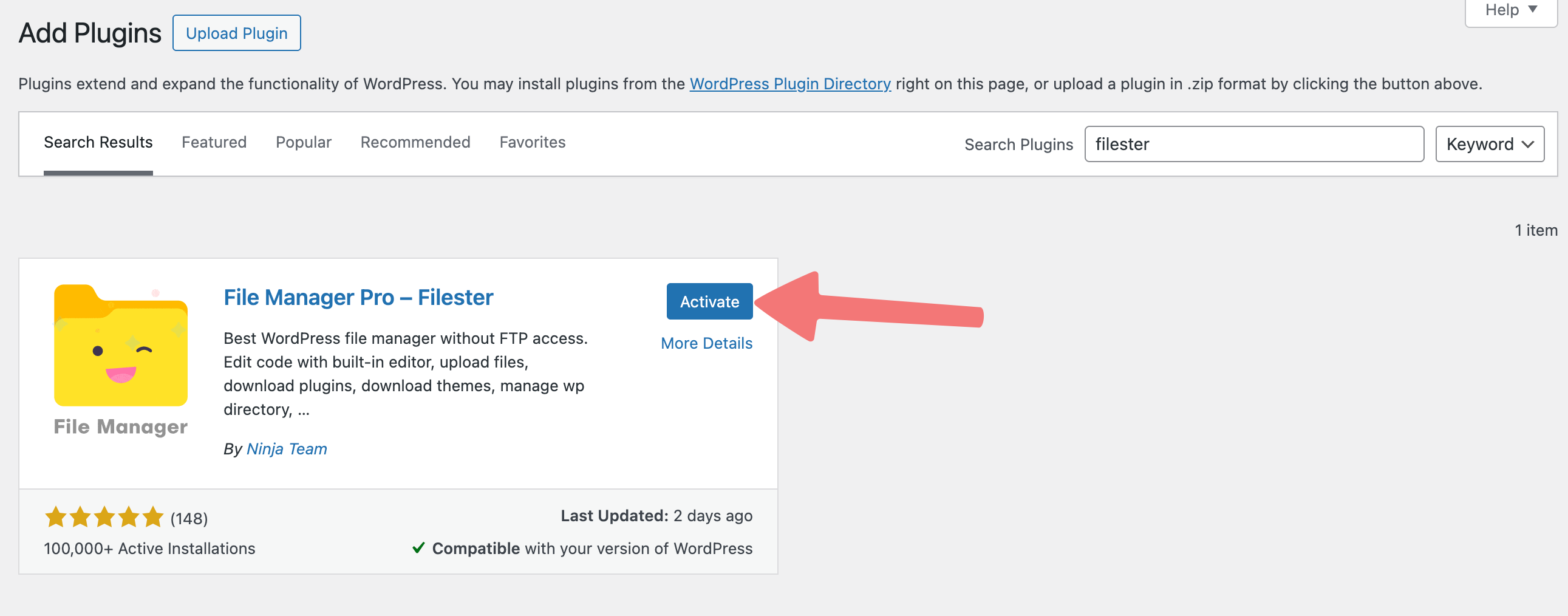
After the plugin finishes installing, click on "Activate" to finish adding it to your site.
The next section will show you how to configure the plugin properly for use with Porkbun's Cloud for WordPress hosting environment.
1
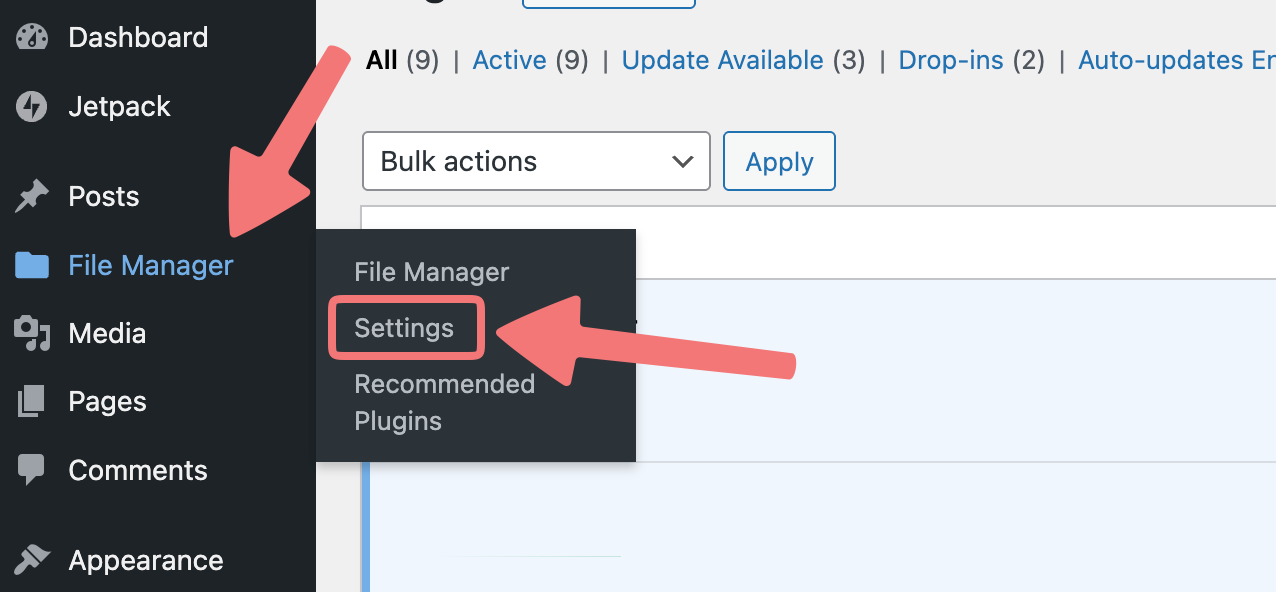
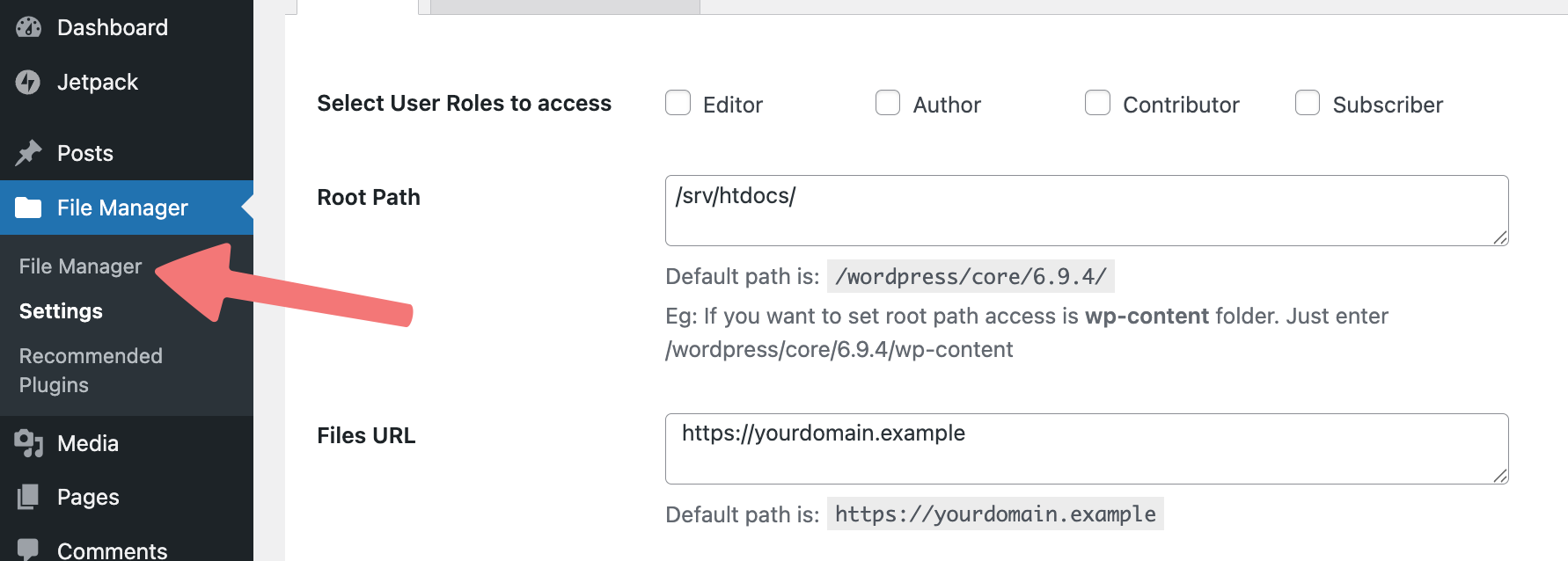
Now that you've installed and activated the plugin, on the left-hand menu you'll see a new option called "File Manager". Hover over that option, then click on "Settings".
2
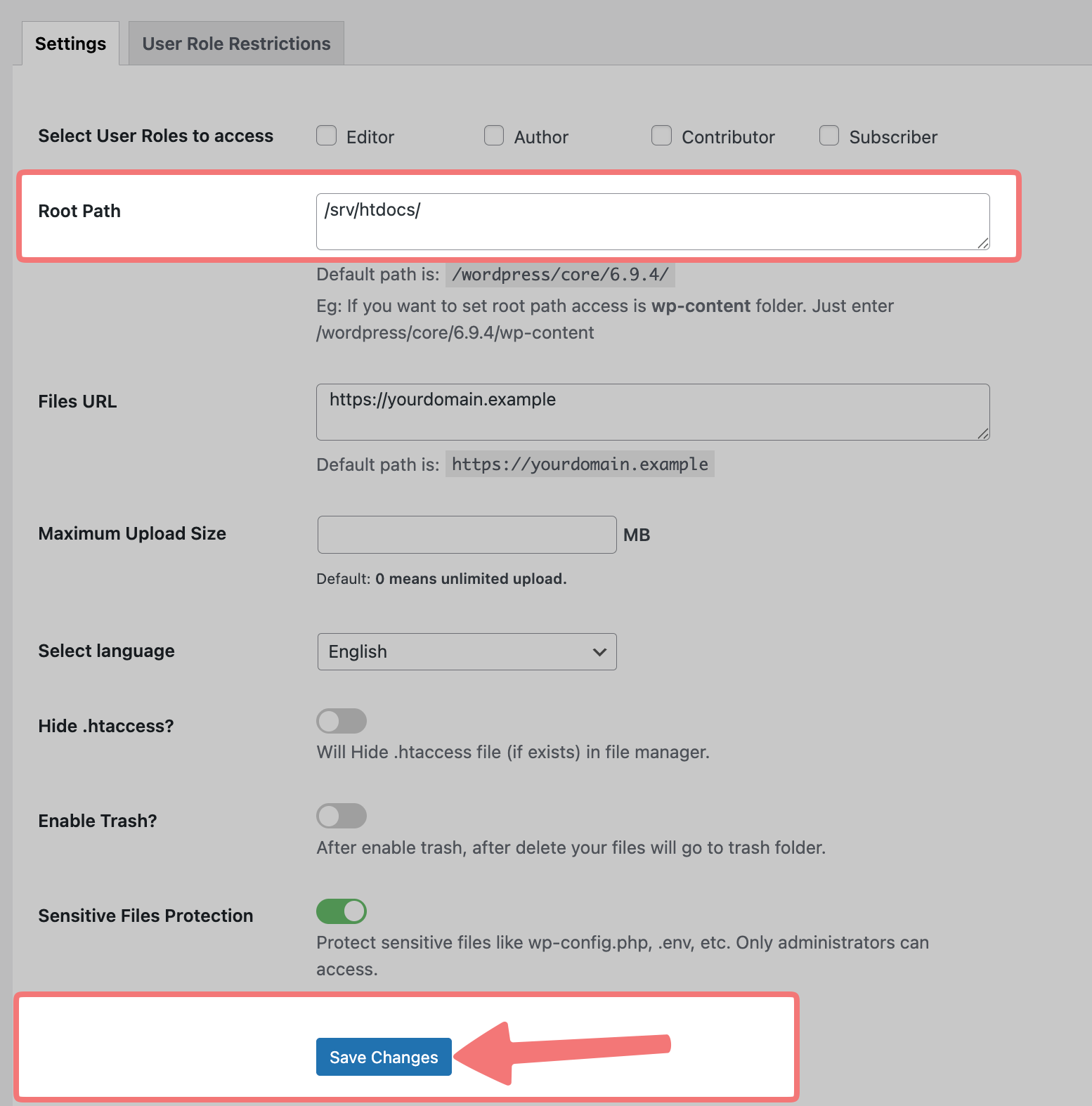
You will need to change the "Root Path" setting. Erase anything that's in that field by default and replace it with the following file directory, exactly as written:
/srv/htdocs/
After making that change, scroll to the bottom of the menu and click "Save Changes".
3
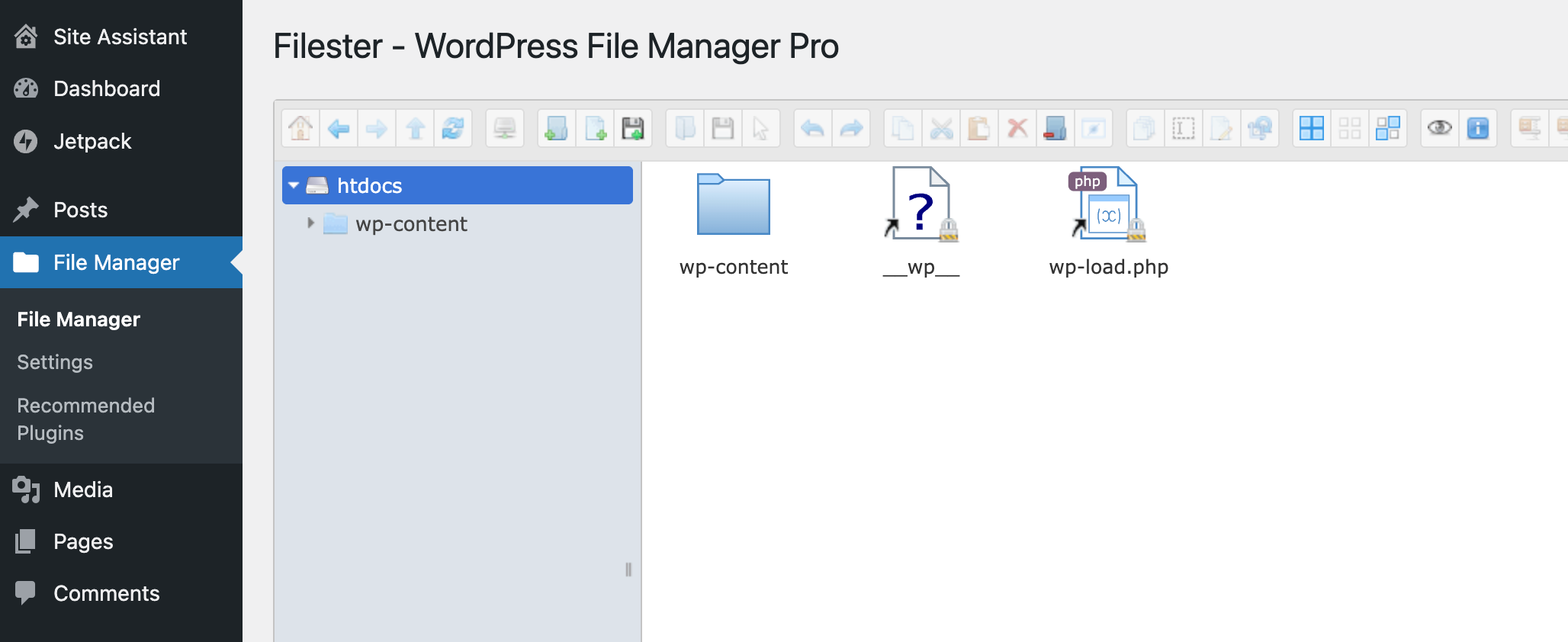
Now that you've updated the Root Path, you can go to the main "File Manager" page from the plugin menu, where you will see the file directories for your website.
That's it! You can now use the plugin to directly manage and update the files for your site, all without requiring FTP access. Have fun!
If you need any further assistance managing your Cloud for WordPress hosting, feel free to get in touch with our support team.