How to Connect to Cloud for WordPress via SFTP
If you want an easy way to connect to your Cloud for WordPress hosting plan and manage the files for your website, SFTP is a great option. This guide will show you how to connect an SFTP client to your hosting plan. We'll be using the free FileZilla client for this guide, but any FTP client should work fine. Let's get started!
Create SFTP user
1
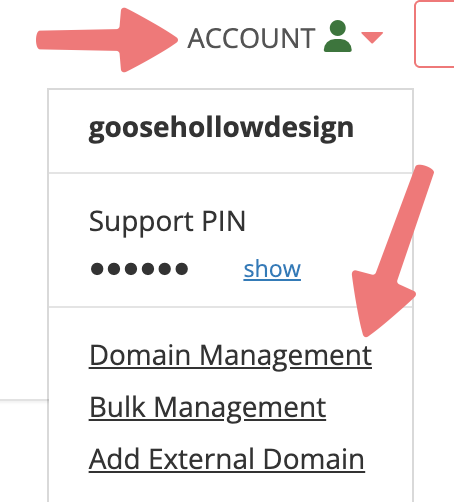
Log in to your Porkbun account and you should arrive at the Domain Management screen. If you're already logged in, click on ACCOUNT in the top-right corner and select "Domain Management" from the dropdown menu.
2
Scroll down until you see the domain you're connecting. To the right of the domain, click on the WordPress logo under the "WEBSITE" column.
3
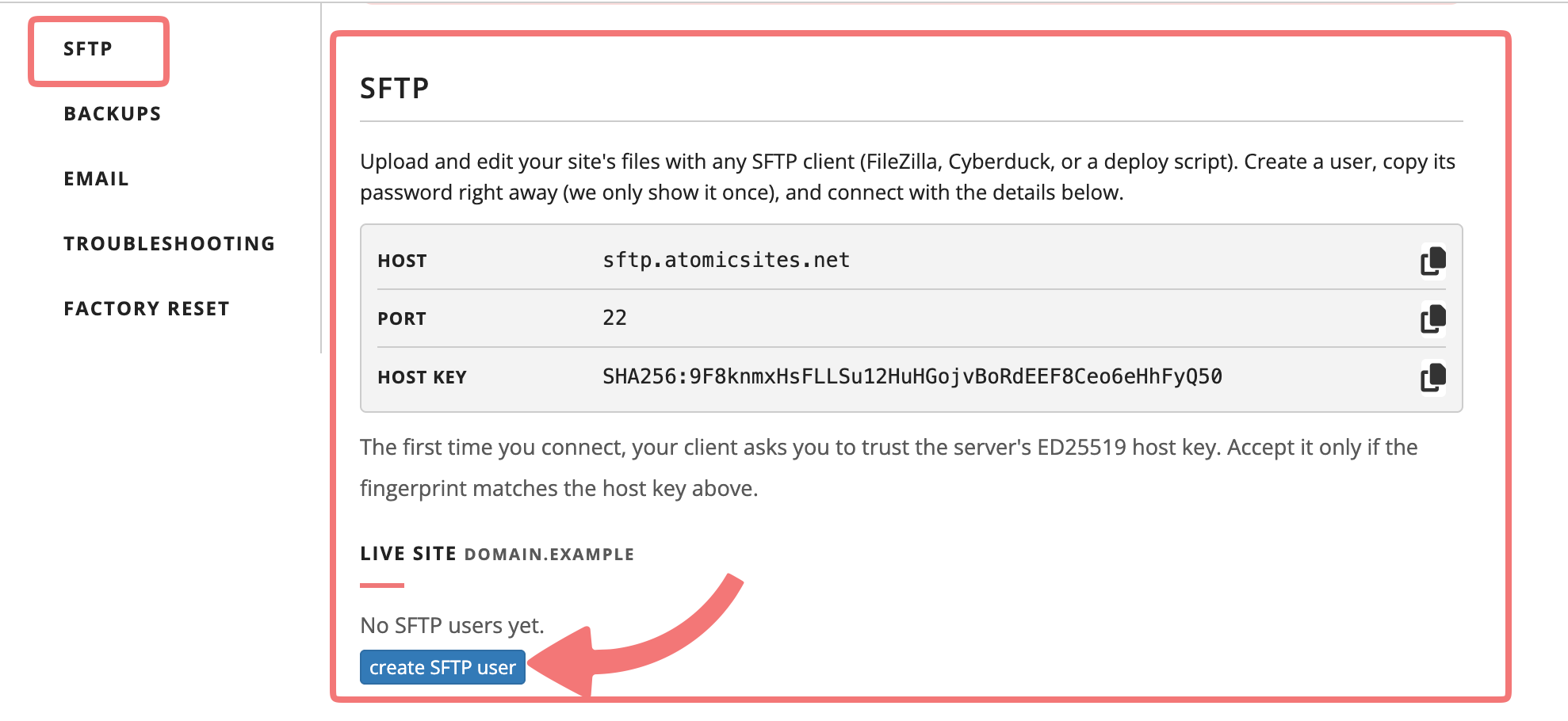
You'll be taken to the Cloud for WordPress hosting page for your domain. Scroll down to the "SFTP" section, or click on the SFTP bookmark on the left menu to jump to that section.
Under the SFTP section, you'll see the credentials for connecting your client. Click on the "create SFTP user" button.
4
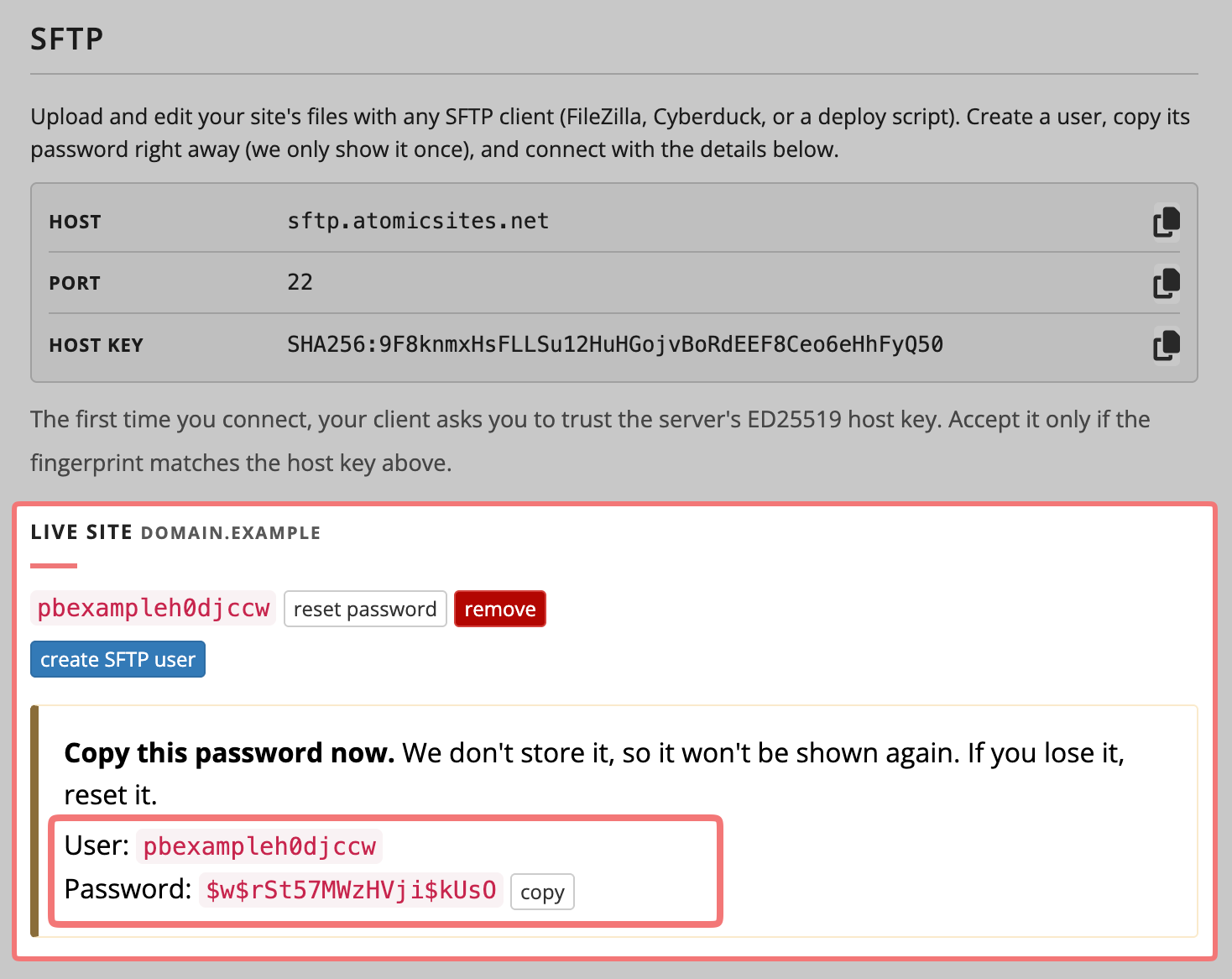
After clicking the button to create an SFTP user, you'll see a new section appear that displays the username and password for the account you've created.
We don't store the password and we'll only show it once, so be sure to store it somewhere safe. Now that you've created the SFTP user, the next section will show you how to connect over SFTP!
Now that you've created a user for your hosting plan, we'll show you how to connect over SFTP. We're using FileZilla for this guide, but any FTP client that supports SFTP connections should work fine.
1
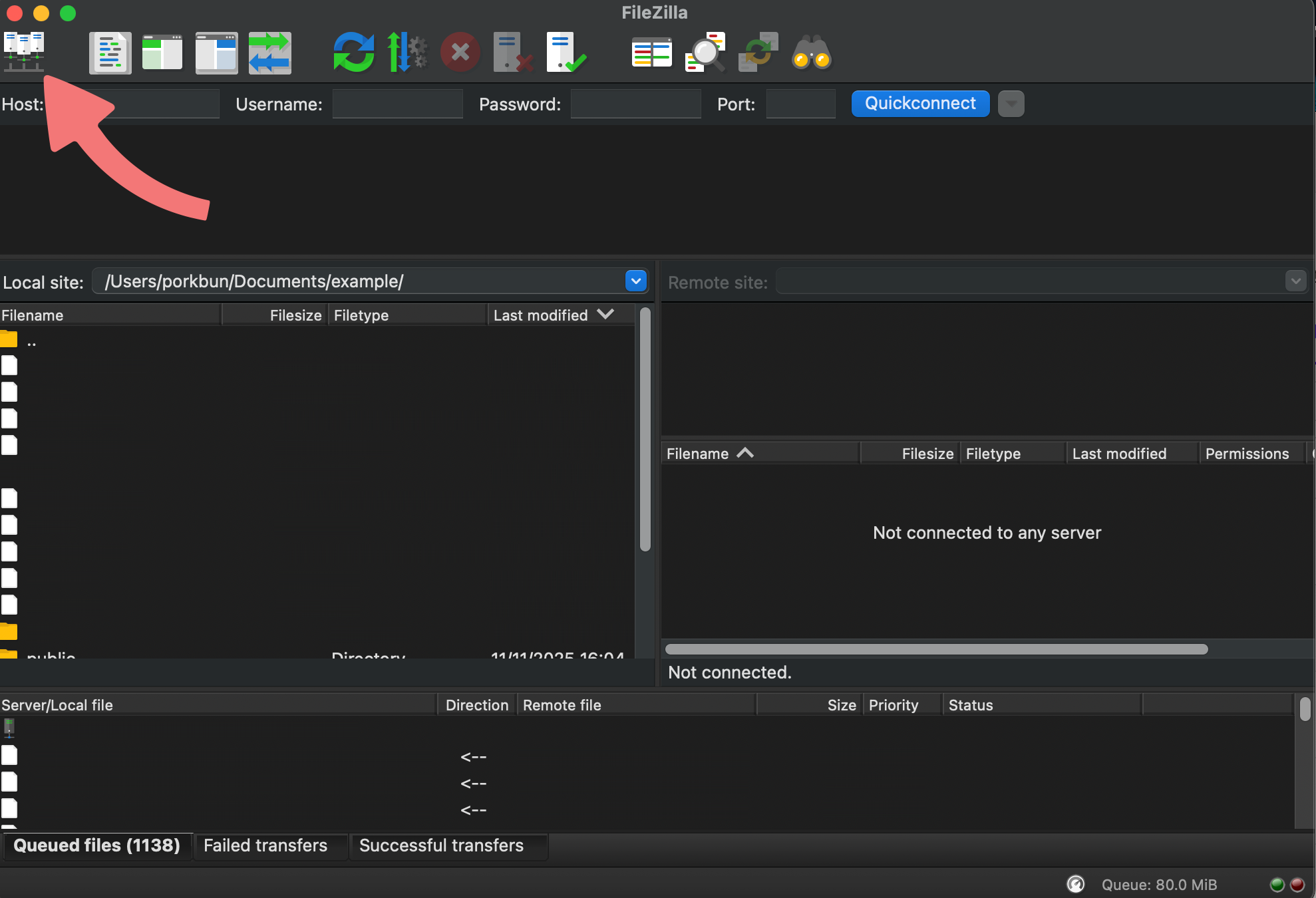
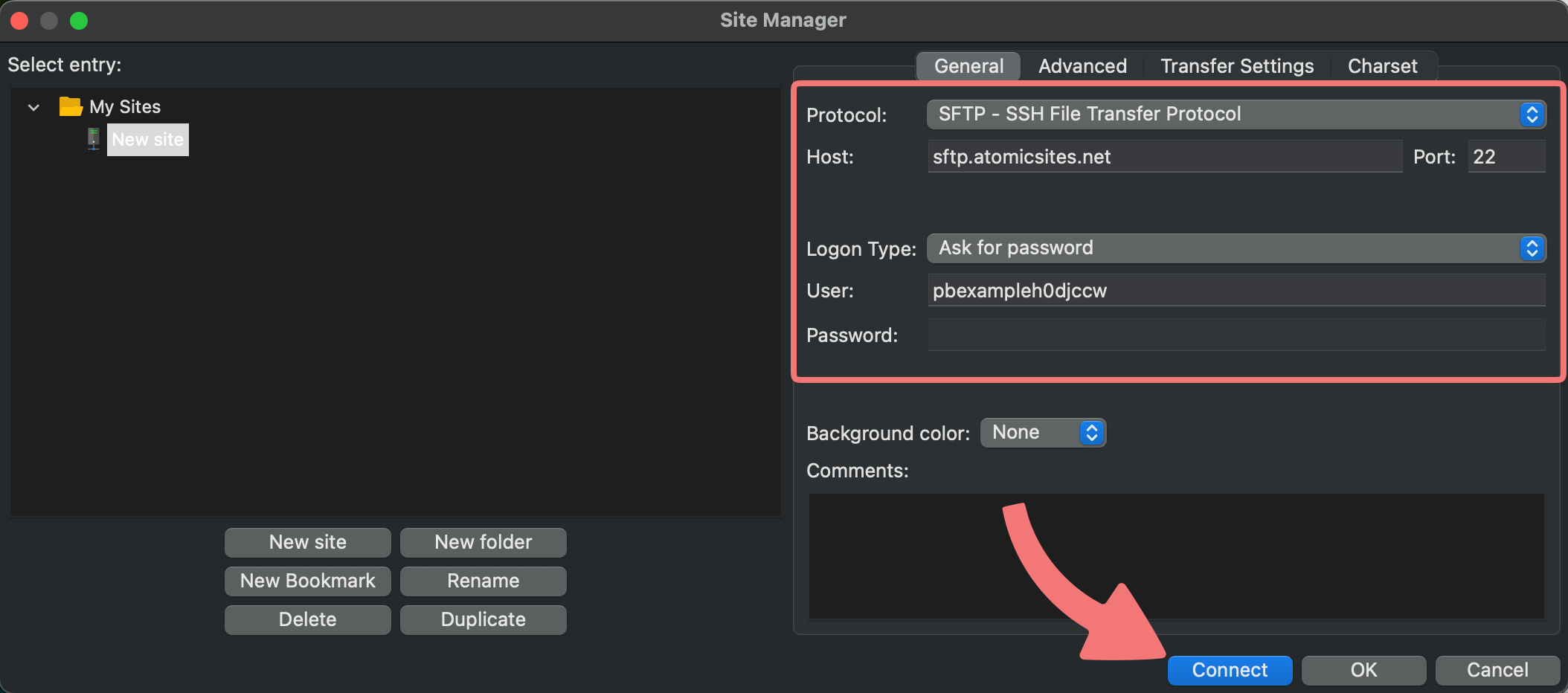
Open your FTP client. Navigate to the setting that allows you to add a new connection. In FileZilla, you can do this by going to the "Site Manager".
2
Ensure you're selecting the "SFTP" option instead of a standard FTP connection. Enter the host name and port (shown on your hosting page, or step 4 of the previous section) and the username for your SFTP account. After everything has been entered, click "Connect".
Hint
By default the "Logon Type" will be set to "Ask for password". If you want the password to be saved so you don't have to enter it every time you connect, change the option to "Normal" instead then enter the password on the Site Manager.
3
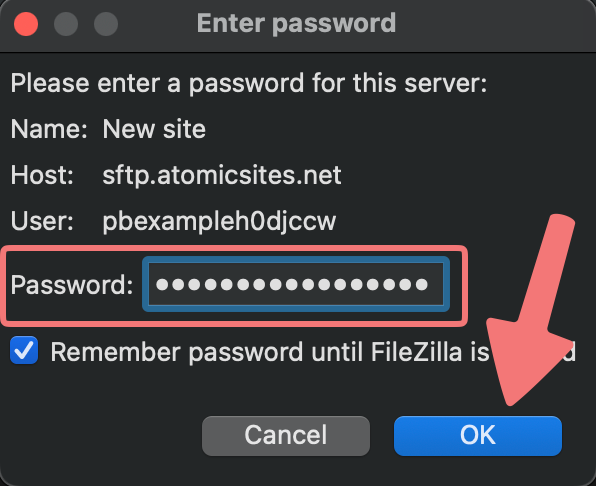
Assuming you used the "Ask for password" option in the last step, you'll now be prompted for the password. Enter the SFTP password that you generated in the last section, then click "OK".
4
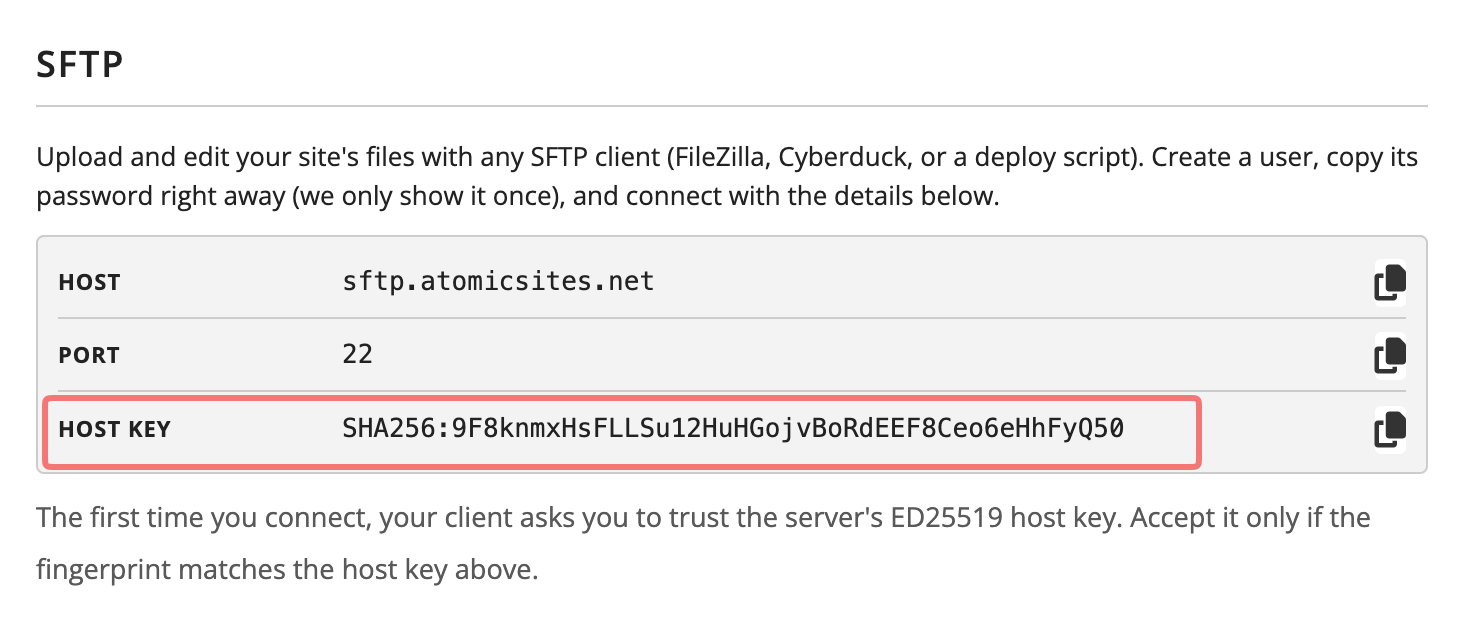
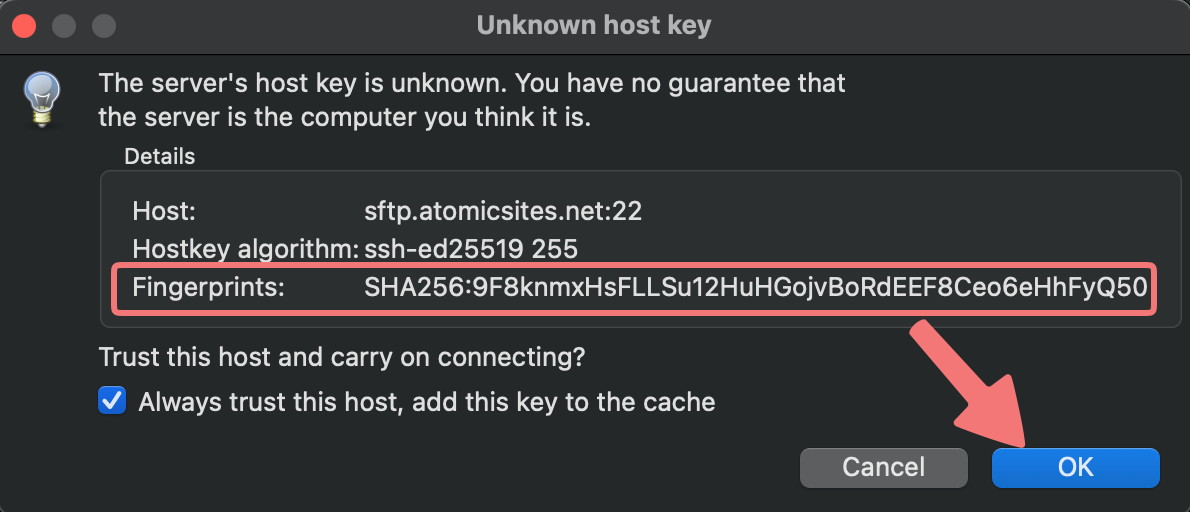
You may get one more pop-up saying that there's an "unknown host key". For security, double check that the value displayed next to "Fingerprints" matches the same value you see in the "Host Key" field on your Porkbun hosting page:
After confirming the values match, you can optionally check the box to trust the host for future connections. Either way, click "OK" to finish.
5
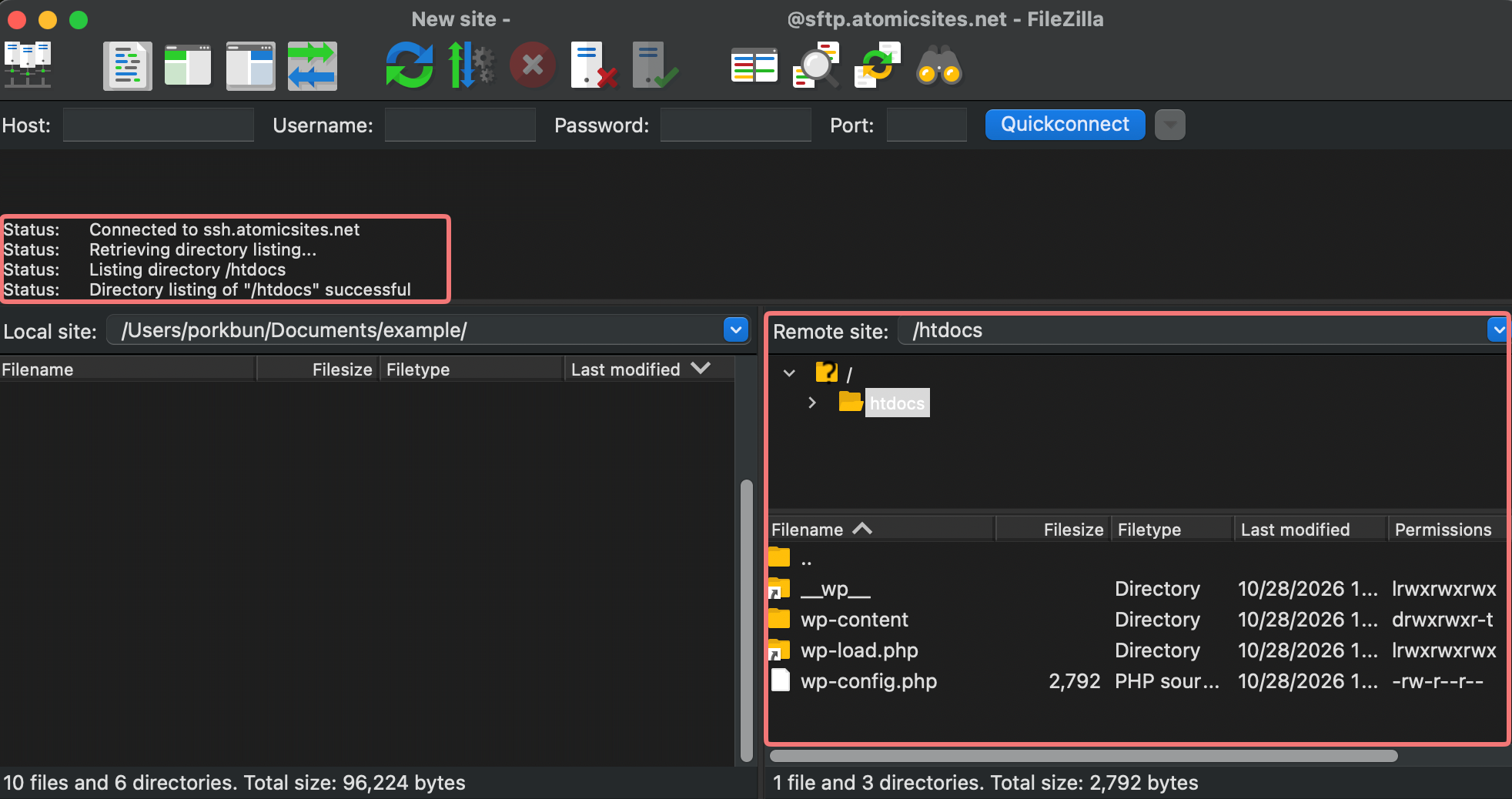
After a moment, you should see a status indicating you've successfully connected over SFTP! You'll also be able to see the main directory for your WordPress site, which starts in the "/htdocs/" folder:
That's it! Now that you've connected over SFTP you'll get direct access and control over the files for your WordPress site. If you ever need to create new SFTP users or reset the password for your existing account, you can always do that on the same hosting page you created the original SFTP account on.
Feel free to get in touch with our support team if you need any assistance configuring SFTP for your site.